A friendly guide to Praesto
What Praesto does for you
Praesto listens to a class, a meeting, or a talk, and turns it into a clean written record as it happens. From that record it quietly builds helpful things for you: a running list of topics, a map of how ideas connect, quick questions to check your understanding, flashcards for later, and a friendly assistant you can ask anything about what was said. You can also add your own notes and upload your own files so everything you need sits in one place.
Everything you capture is stored inside a conversation. A conversation is just a named session, like "Leadership Lecture, July 18" or "Team Standup." Each conversation keeps its own transcript, notes, topics, files, and study cards together.
The layout at a glance
When you open Praesto on an iPad or a Mac, you get a narrow strip of icons down the left side and one big working area beside it.
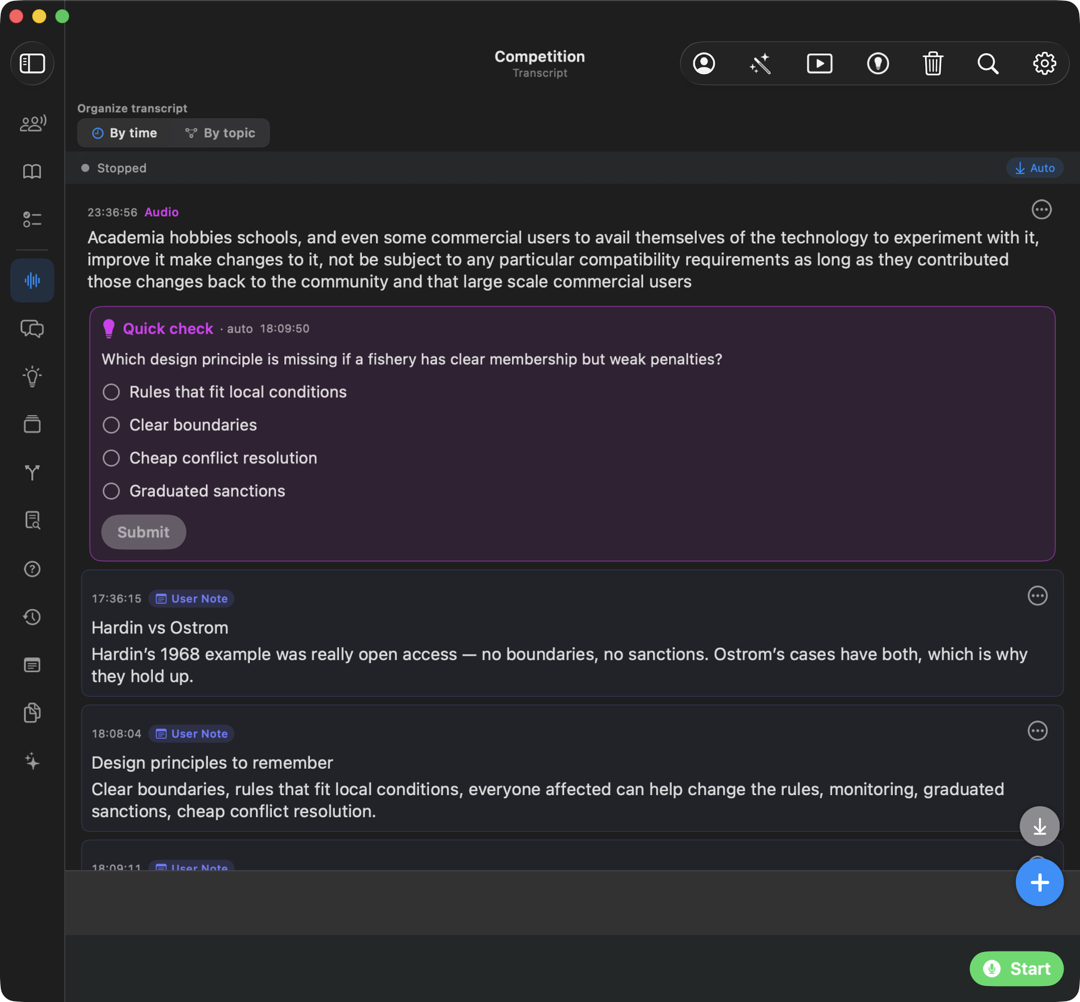
- The icon strip (left). Your whole menu, tucked into one column. The top three icons are the modes, which rearrange the screen for different situations. Below the divider are the features, the individual tools inside a conversation.
- The main view (right). Whatever you picked shows up here, using the full width of the window. In the picture above it is the live transcript.
- The button at the very top of the strip slides the menu open into words, and brings your list of conversations out beside it. Tap it again to tuck everything back into icons. There is a picture of it open under Your conversations list, below.
On an iPhone the same pieces appear as pop-up panels and tabs, so it all still fits on a smaller screen.
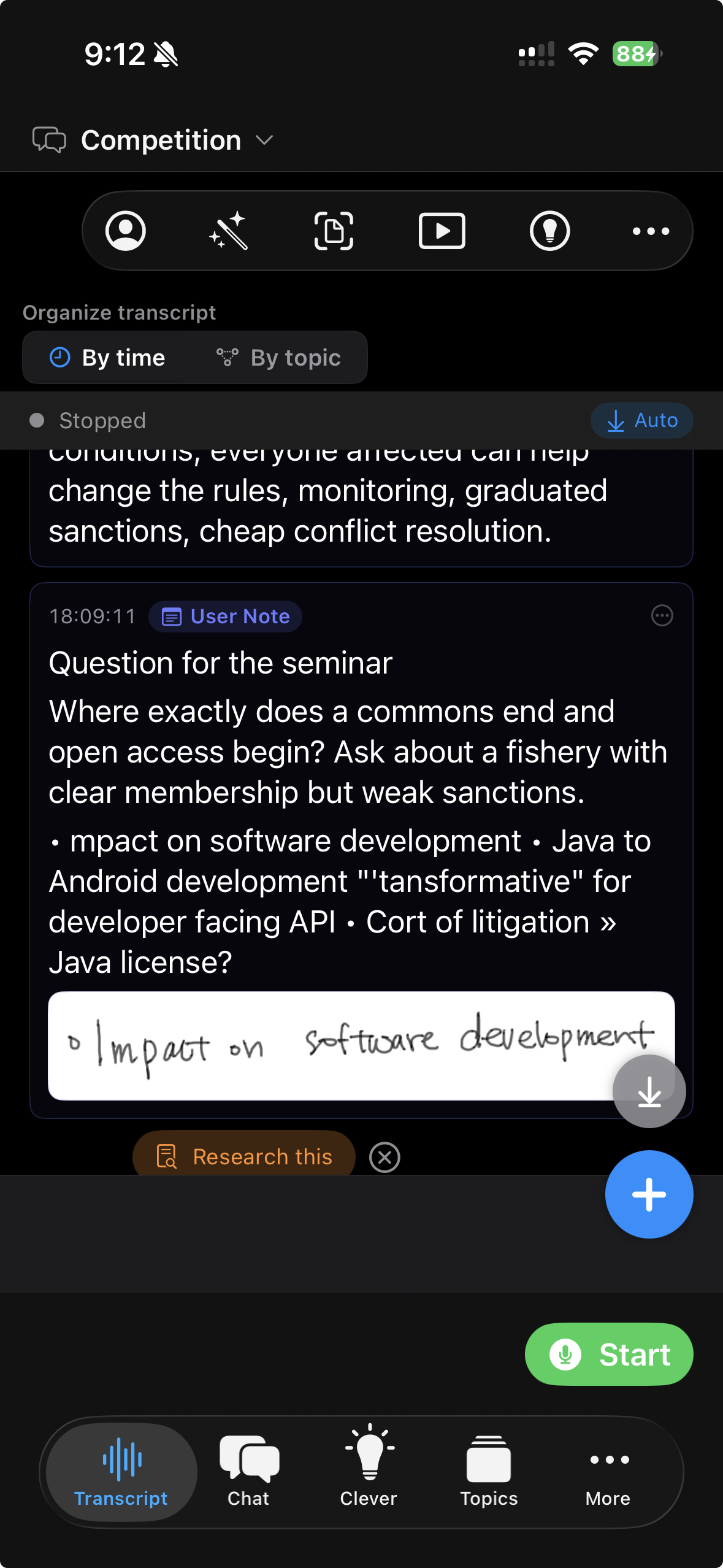
Your conversation name sits at the top and opens a list when you tap it. The tools you use most — Transcript, Chat, Clever, Topics — become a row of tabs along the bottom, with More holding the rest.
Getting started in three steps
- Make a new conversation. Tap the button at the top of the icon strip to bring out your conversations, then tap the plus button above the list and choose New conversation. Give it a name so it is easy to find later.
- Start listening. Open the Transcript tool and tap the green Start button at the lower right. Praesto begins writing down what it hears. The button turns into a red Stop while it is running.
- Stop when you are done. Tap Stop. Your transcript is saved, and Praesto gets to work building your topics, questions, and study cards in the background.
That is the whole loop. Everything else in this guide is about the helpful things you can do with what you captured.
Your conversations list
Tap the button at the top of the icon strip and your conversations slide out on the left, with the full worded menu beside them. This is home base.
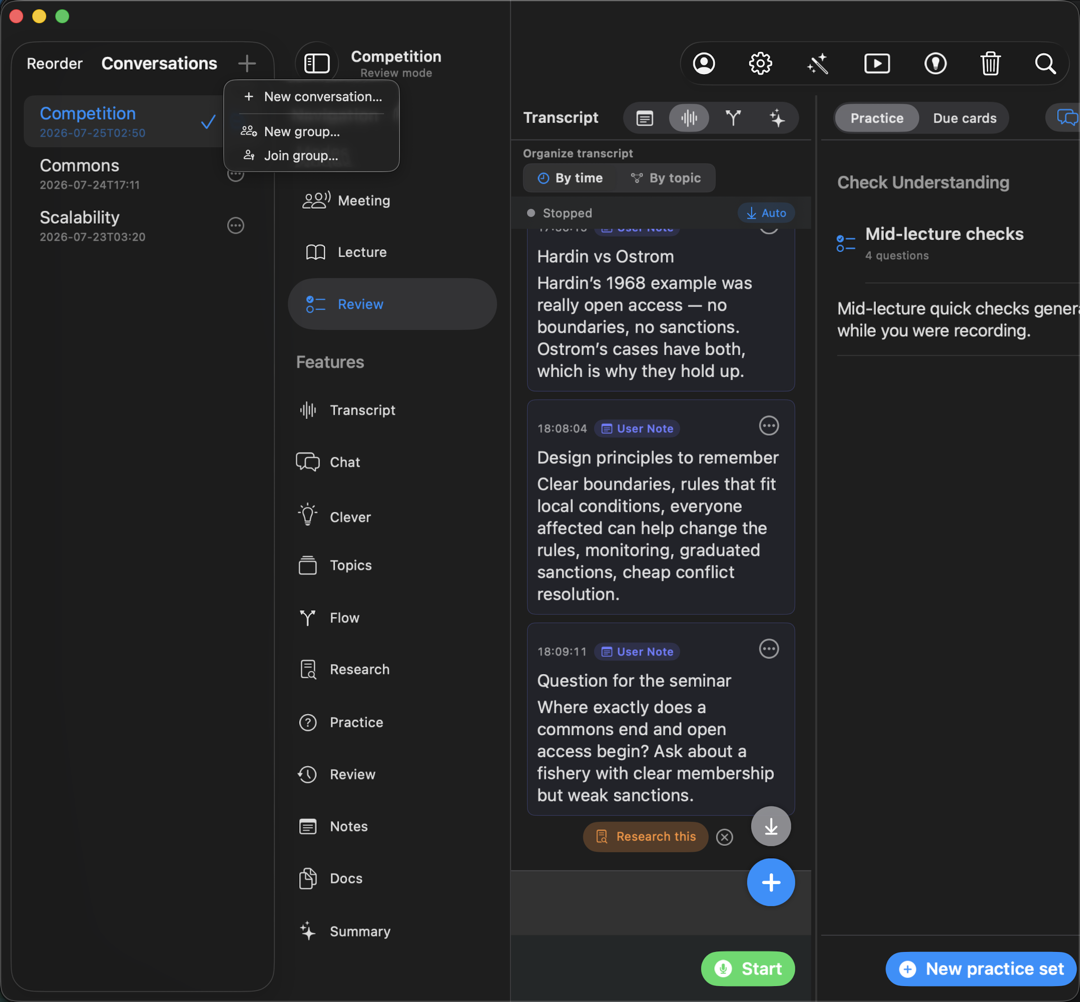
Here is what each control does.
- Reorder. Tap it to drag your conversations into any order you like. It changes to say Done when you are finished. If you never reorder, your conversations simply sort with the newest first.
- Plus button. Opens a short menu with three choices:
- New conversation. Starts a fresh session.
- New group. Turns the current conversation into a shared space other people can join.
- Join group. Lets you join someone else's shared space using a key they gave you.
- The three dots at the end of a row (a circle with three dots) open a small menu for that one conversation, where you can Rename it, Convert it to a group, or Delete it. Deleting asks you to confirm first, because it removes everything in that conversation for good.
- A small red dot on the left of a row marks the one conversation that is being recorded right now, so you always know which session the microphone is capturing.
- A checkmark on the right shows which conversation you have open at the moment.
- A green "Group" tag under a name means that conversation is shared with other people, and it shows how many people are in it.
The three modes
Modes rearrange the whole workspace to match what you are doing. You can switch modes at any time without losing anything.
Meeting mode
Best for a live meeting or discussion. It puts three panels next to each other so you can follow along and capture thoughts at the same time.
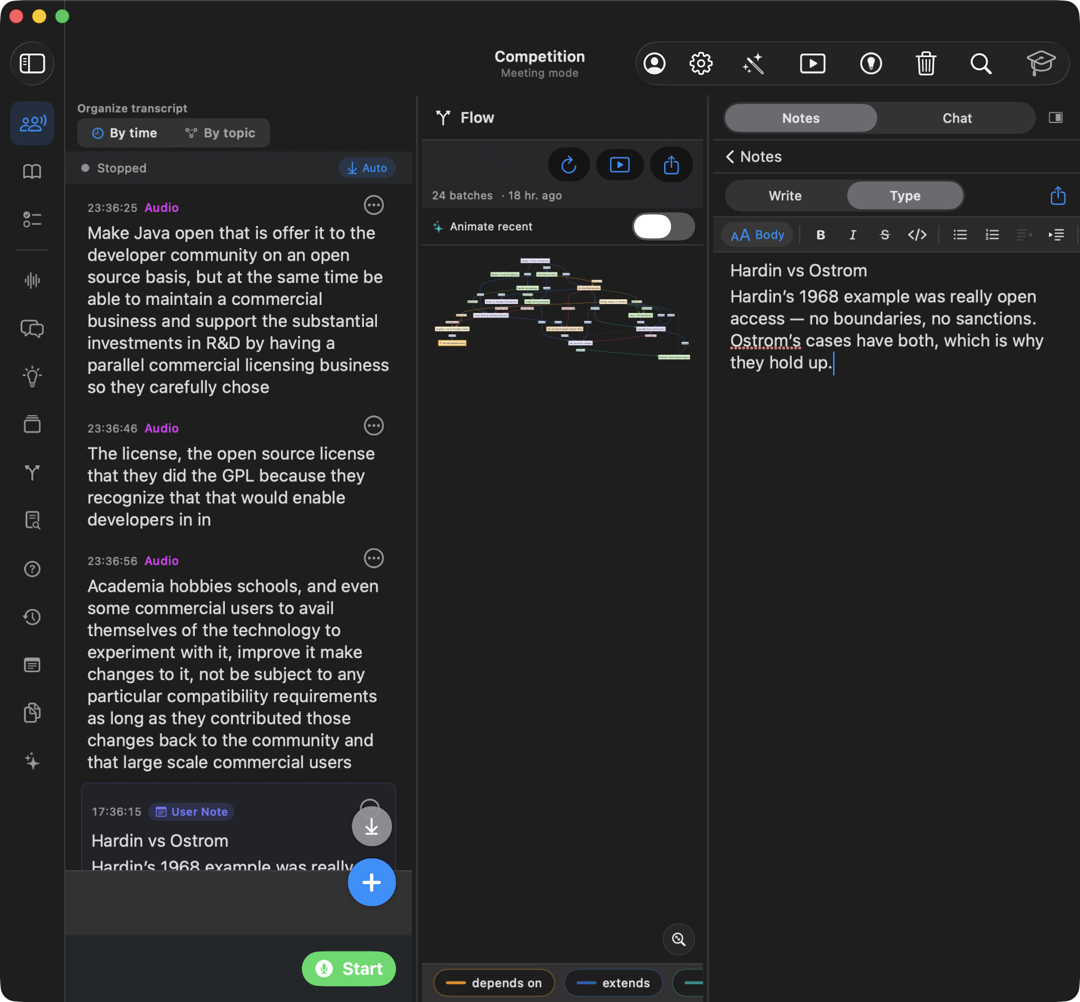
- On the left, the live transcript, which you can group by topic.
- In the middle, the Flow map, which shows how ideas connect as they come up.
- On the right, a panel that switches between Notes and Chat, so you can jot something down or ask a question without leaving the meeting.
You can drag the divider lines to make any panel wider, and collapse the right panel when you want more room.
Lecture mode
Best for following a class or a talk where you are learning from material. It gives you a roomy study workspace with your files, the live transcript, and your notes together, so you can read a slide, listen, and take notes in one place.
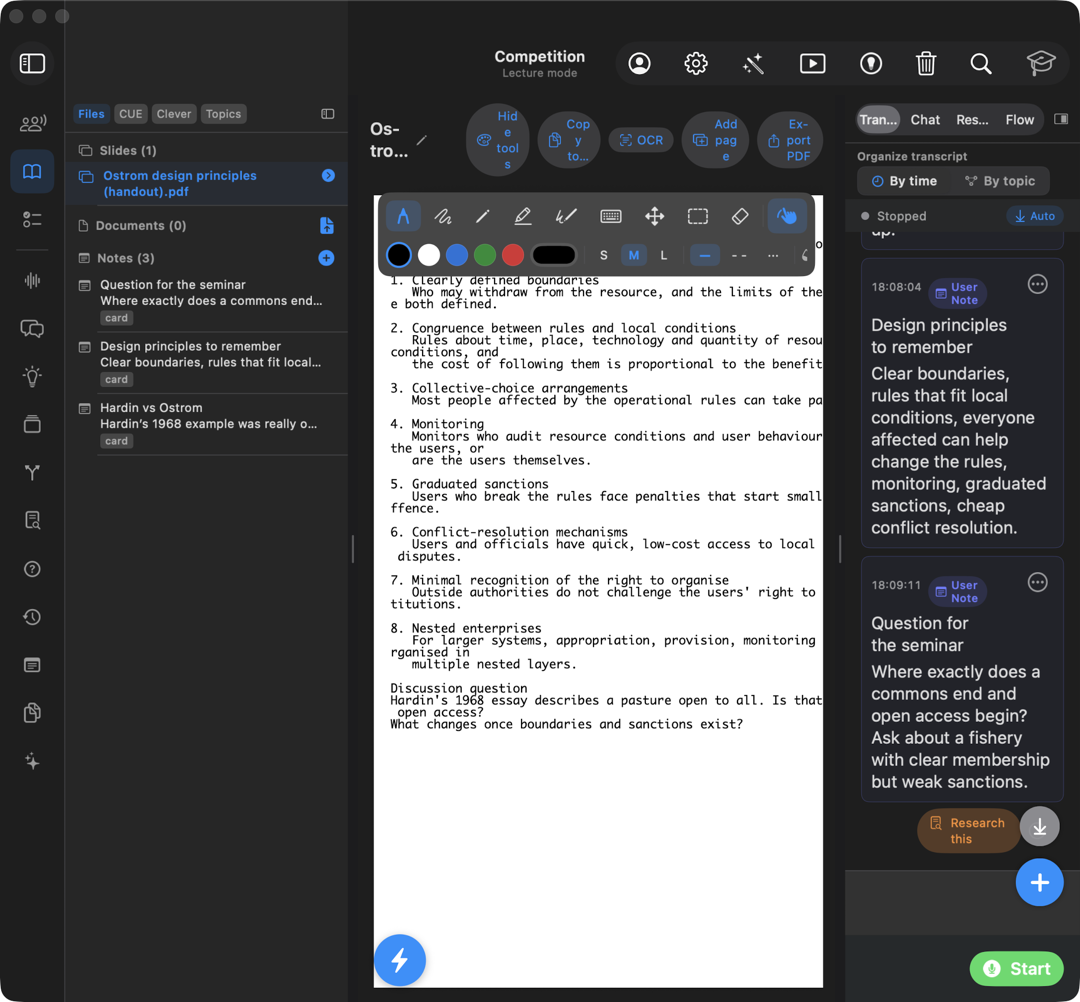
- On the left, a drawer listing your Slides, Documents, and Notes for this conversation. Tap anything to open it.
- In the middle, whatever you opened. A document opens ready to mark up: pen, marker, pencil, highlighter, and a text tool sit along the top.
- On the right, the live transcript, with tabs to flip to Chat, Research, or Flow without leaving the page.
Review mode
Best for after a session is over. It is a calm study setup where you test yourself against what was said and only ask for help when you get stuck.
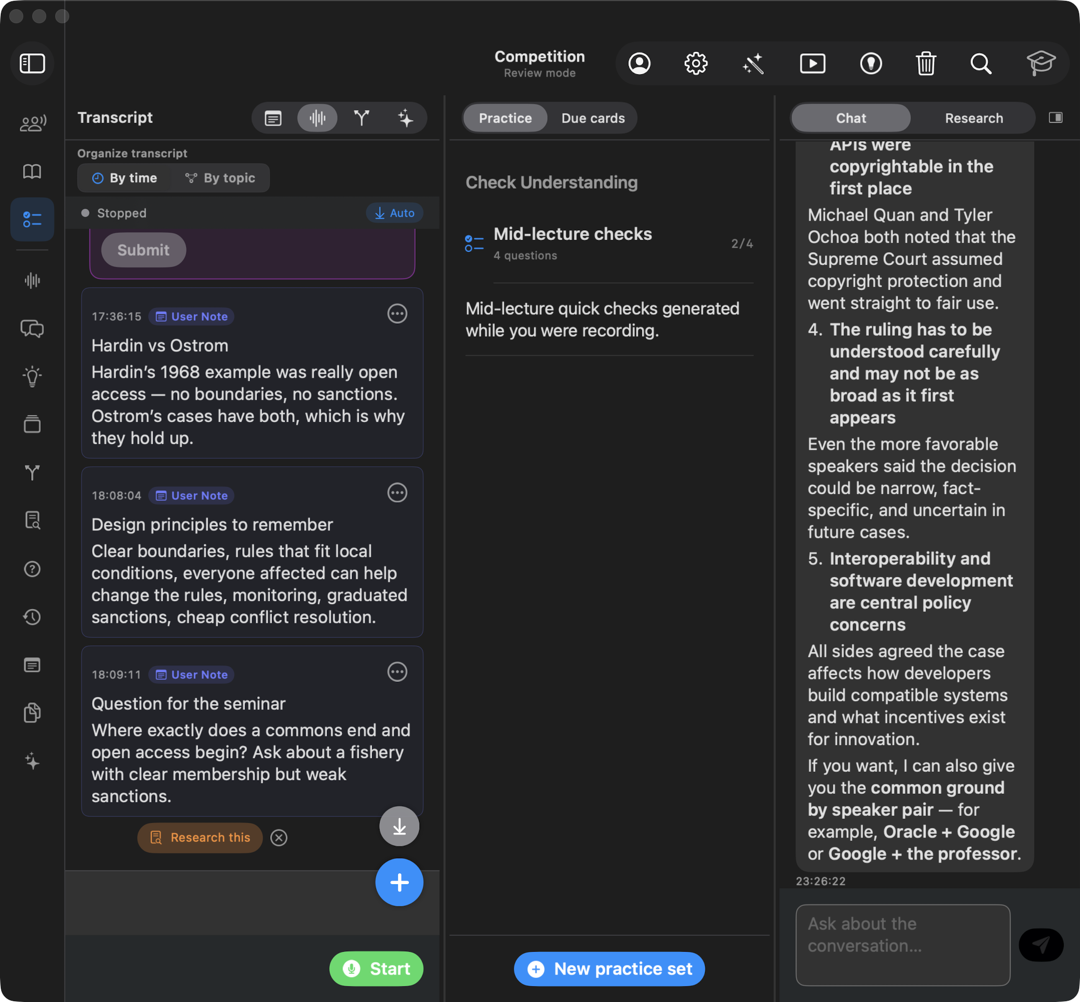
- On the left, the four small icons at the top flip between your Notes, Transcript, Flow, and Summary, so you can check yourself against any of them.
- In the centre, Practice questions, or the Due cards tab for the flashcards waiting for you today.
- On the right, a Chat helper, with Research a tap away if a follow-up question comes up.
The features, one by one
These are the tools inside every conversation. Open any of them from the Features list in the menu.
Transcript
The transcript is the live, running record of everything being said. You never have to scramble to catch a word.
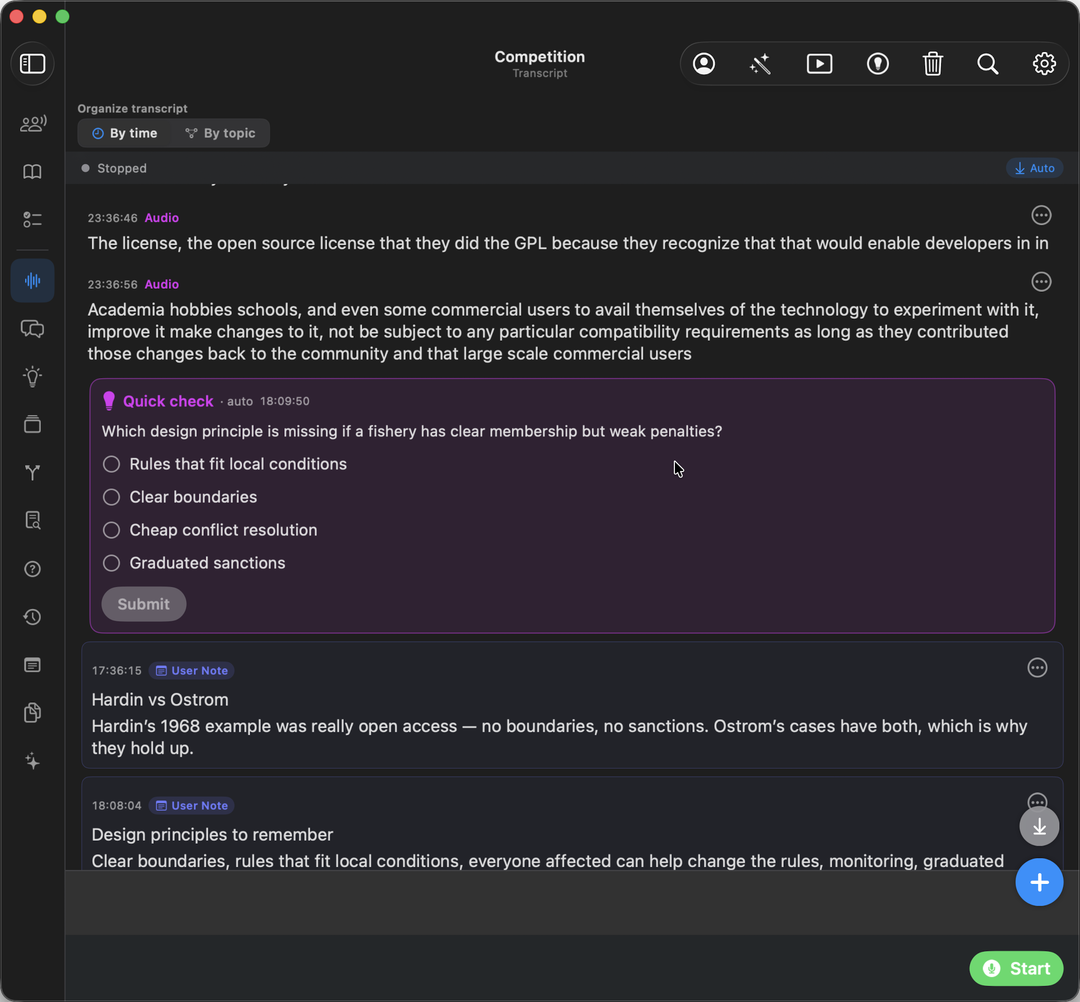
- Start and Stop (the green and red button at the lower right) begin and end recording.
- Organize transcript at the top lets you read the transcript By time, in the order things were said, or By topic, with everything about one subject gathered together.
- The plus button at the lower right lets you type in a line by hand, or add a handwritten or drawn note.
- The three dots on any line open a small menu for that line, for example to copy it or fix a mis-heard word.
- When Praesto notices a question in the conversation, it shows a Research this button under it. Tap it to have the app look the question up for you, or tap the small x to hide it.
- Now and then a purple Quick check card appears with a short multiple-choice question, so you can make sure you are following along. Pick an answer and tap Submit.
Chat
Chat is a friendly assistant that knows about your session. Ask it anything about what was discussed, or anything related, and it answers using your transcript, notes, and files. When a question calls for it, Chat can also search the web.
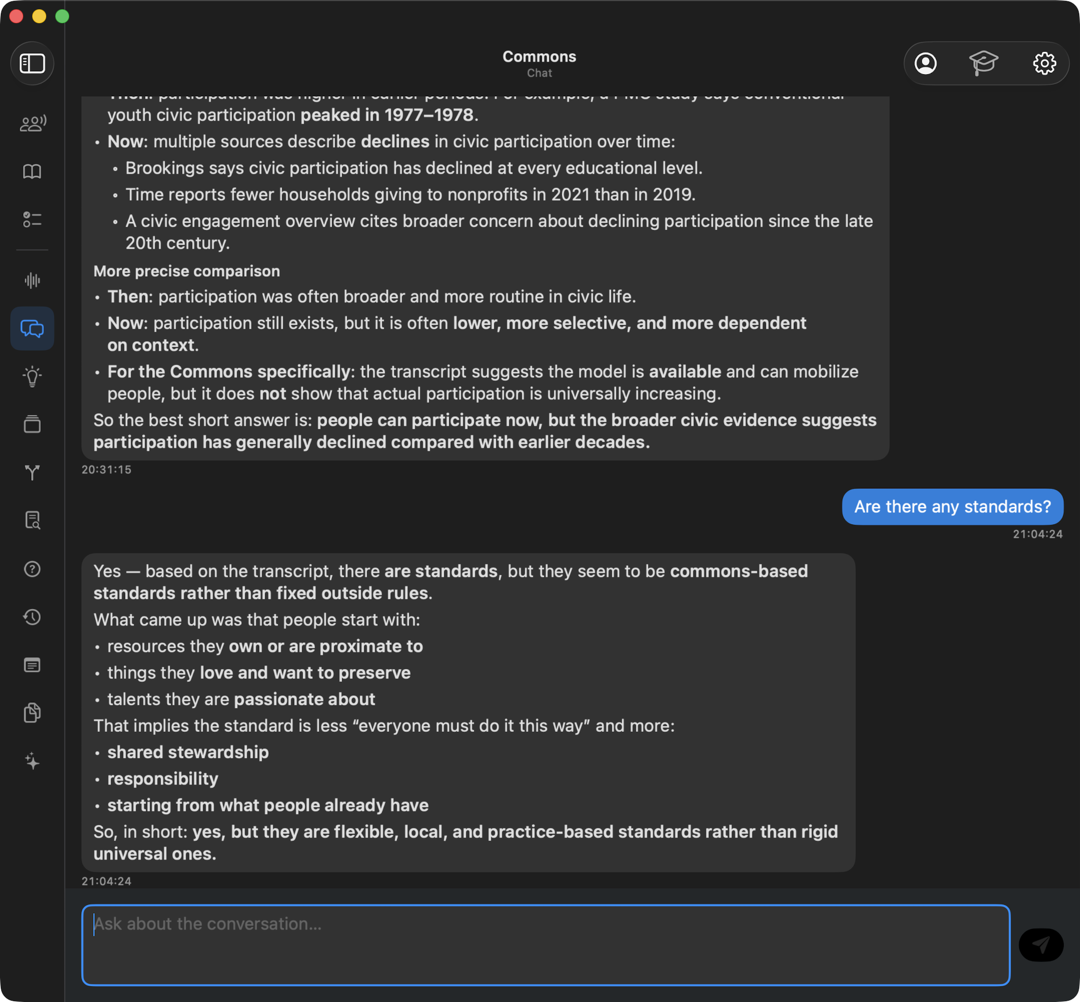
Type your question in the Ask about the conversation box at the bottom and send it. Your questions and the assistant's replies stack up like a normal chat.
Clever
Clever gently surfaces thoughtful questions the app noticed while you talked, to help you think more deeply about the material.
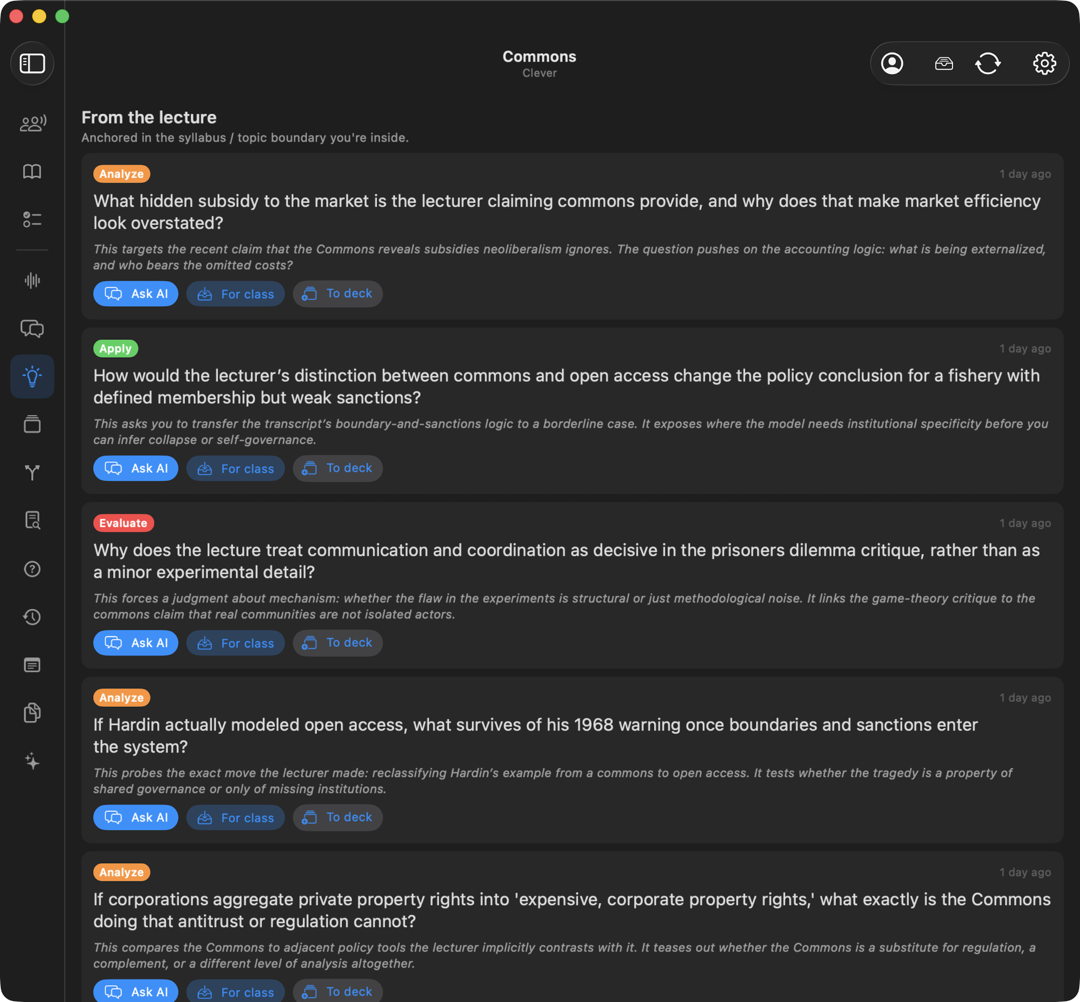
Each question carries a small colored label that hints at the kind of thinking it asks for, such as Apply, Analyze, or Evaluate. For any question you can:
- Ask AI to send it straight to Chat for an answer.
- For class to save it as something worth raising.
- To deck to add it to your practice flashcards.
Topics
Topics is a tidy running list of the subjects that come up, so you can see at a glance what was covered.
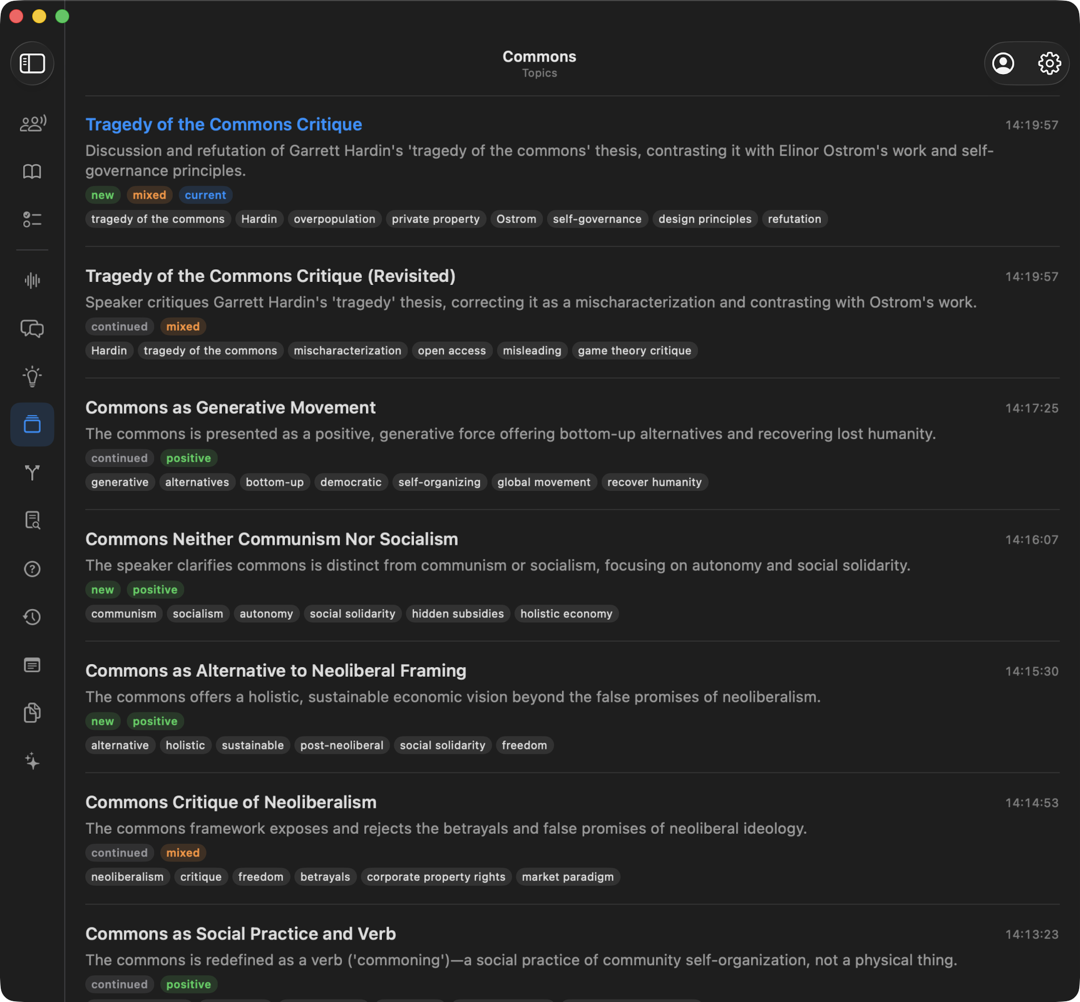
Each topic shows a short summary, a few keyword tags, and small status labels like new, current, or shifted that tell you how the discussion moved. If a topic connects to one of your uploaded files, it shows a document reference you can open.
Flow
Flow is a picture of the whole conversation. It shows the topics as boxes and draws lines between them to show how ideas connect, like a map.
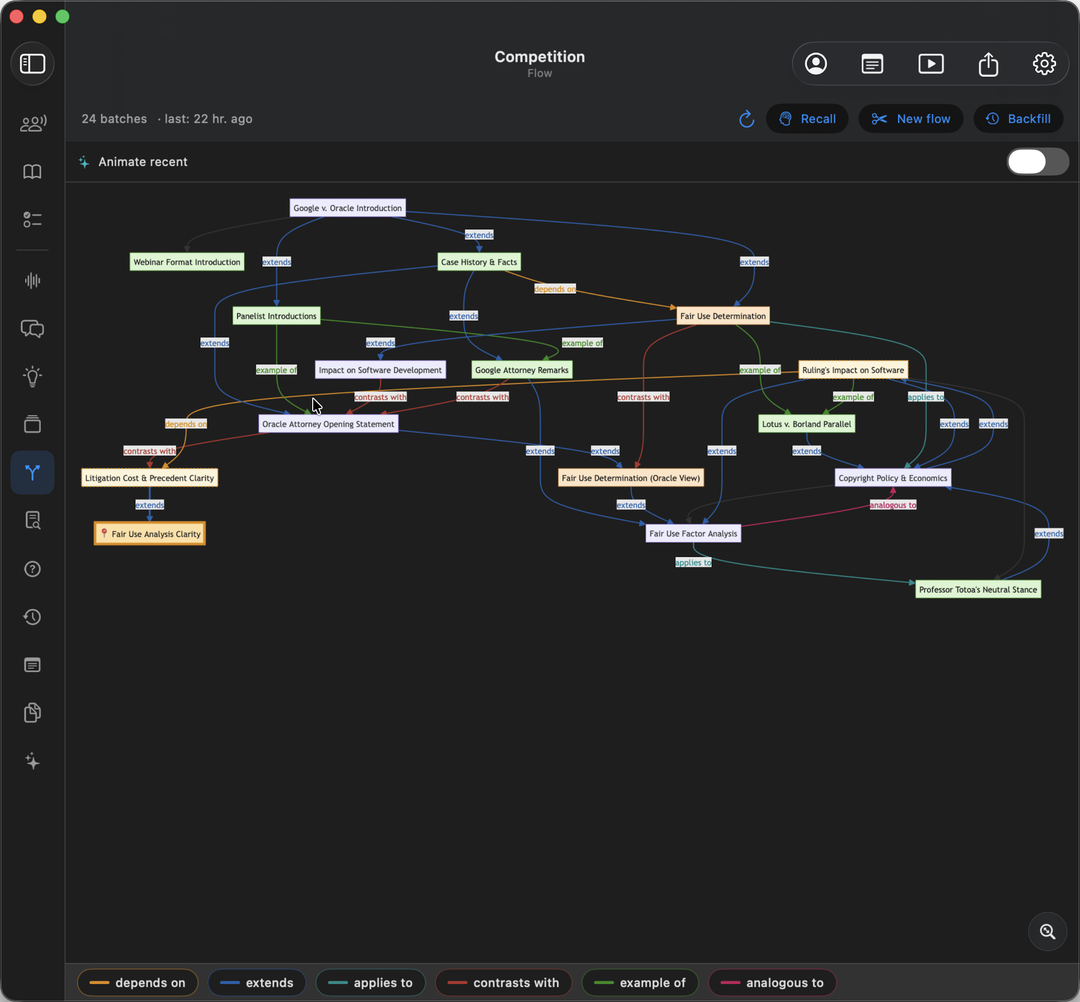
The small legend at the bottom explains the connections, such as depends on, extends, contrasts with, and causes. A few controls sit at the top:
- Recall starts a quick memory check on the topics in the map.
- New flow begins a fresh map from this point on.
- Backfill fills the map in with topics from earlier in the session.
- Animate recent gently highlights the newest additions.
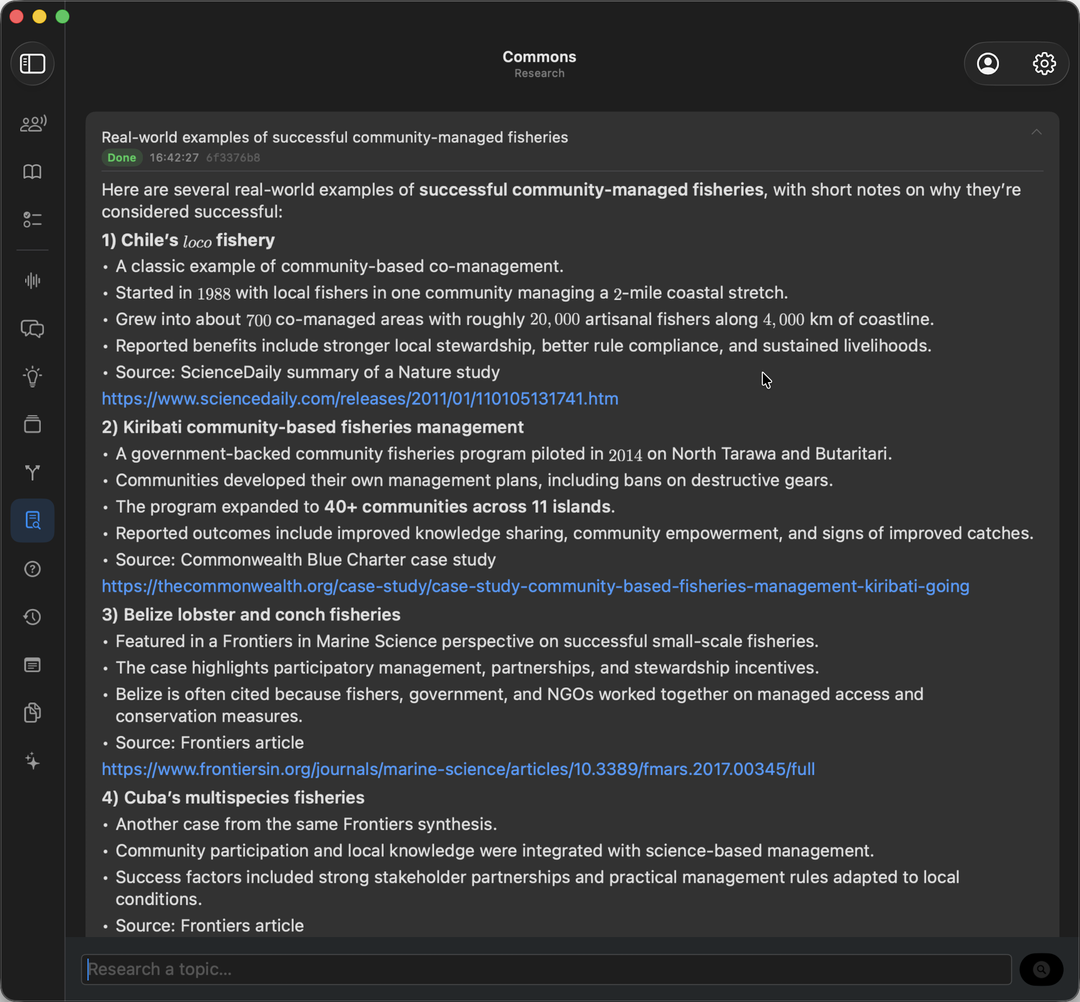
Research
Research is a helper that quietly goes off and digs into a question for you while you keep listening.
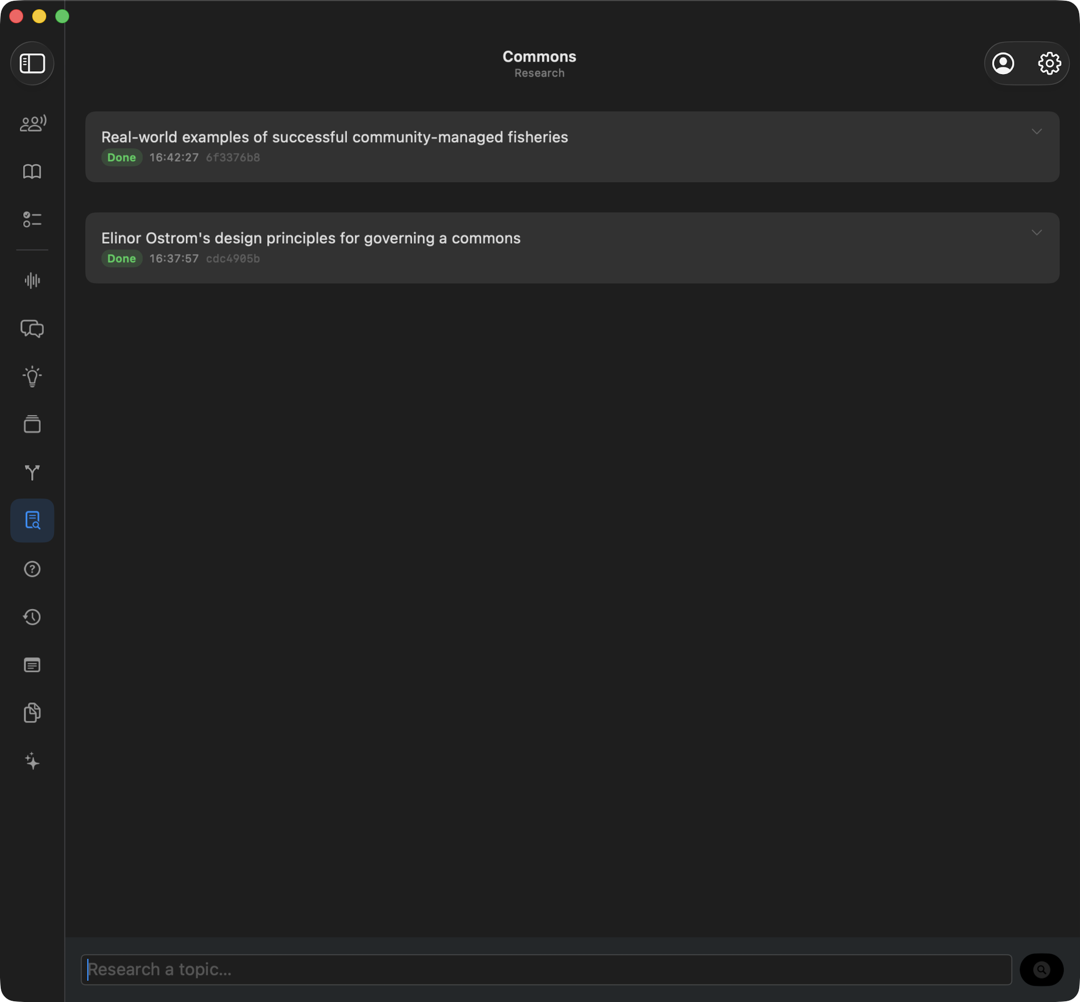
Type what you want looked into in the Research a topic box and start it. The task runs in the background, searching and reasoning, and shows a Done label when the write-up is ready to read. You can also launch a research task straight from a question in your transcript.
Tap a finished task to open the write-up. It comes back organised, with the sources it used listed as links you can follow.
Practice
Practice turns your session into a set of questions so you can check what really stuck.
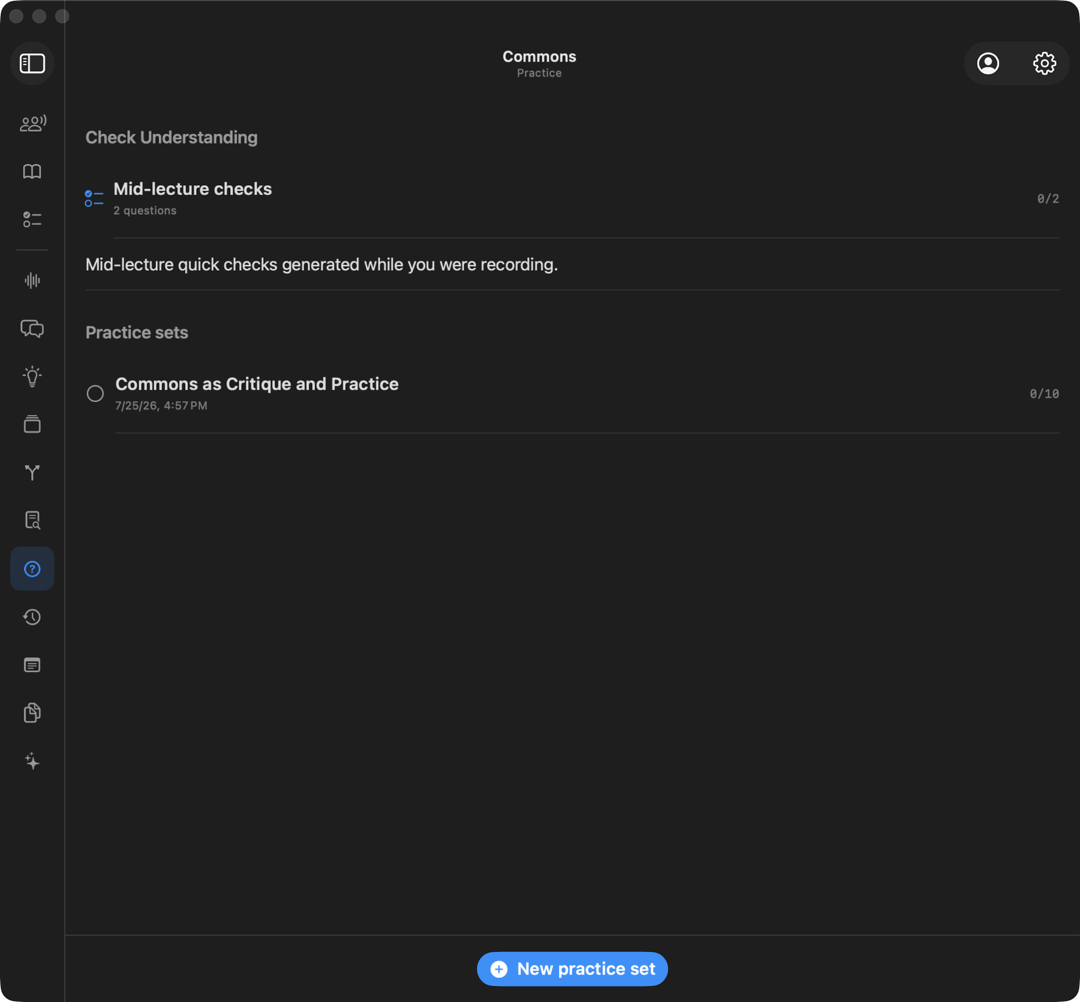
Tap New practice set and wait a short moment while Praesto writes questions based on your conversation. Your past sets stay in a list, so you can come back to them anytime.
Open a set and you answer one question at a time.
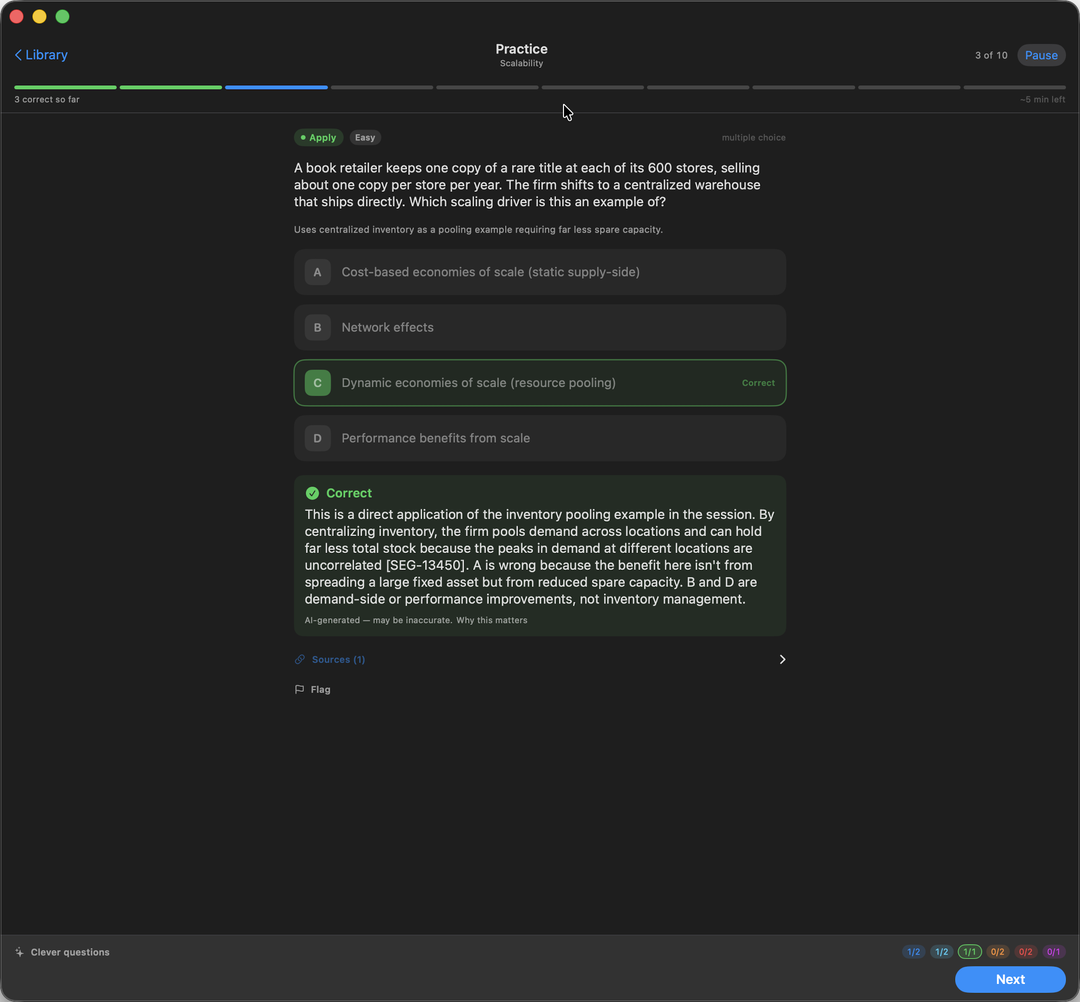
- A bar across the top tracks how far you are through the set, how many you have right, and roughly how long is left.
- Each question carries a label for the kind of thinking it asks for, such as Apply, and how hard it is.
- Pick an answer and the right one is marked straight away, with an explanation of why, and why the other answers are wrong.
- Sources shows the moment in your session the question came from. Flag reports a question that looks wrong.
Review
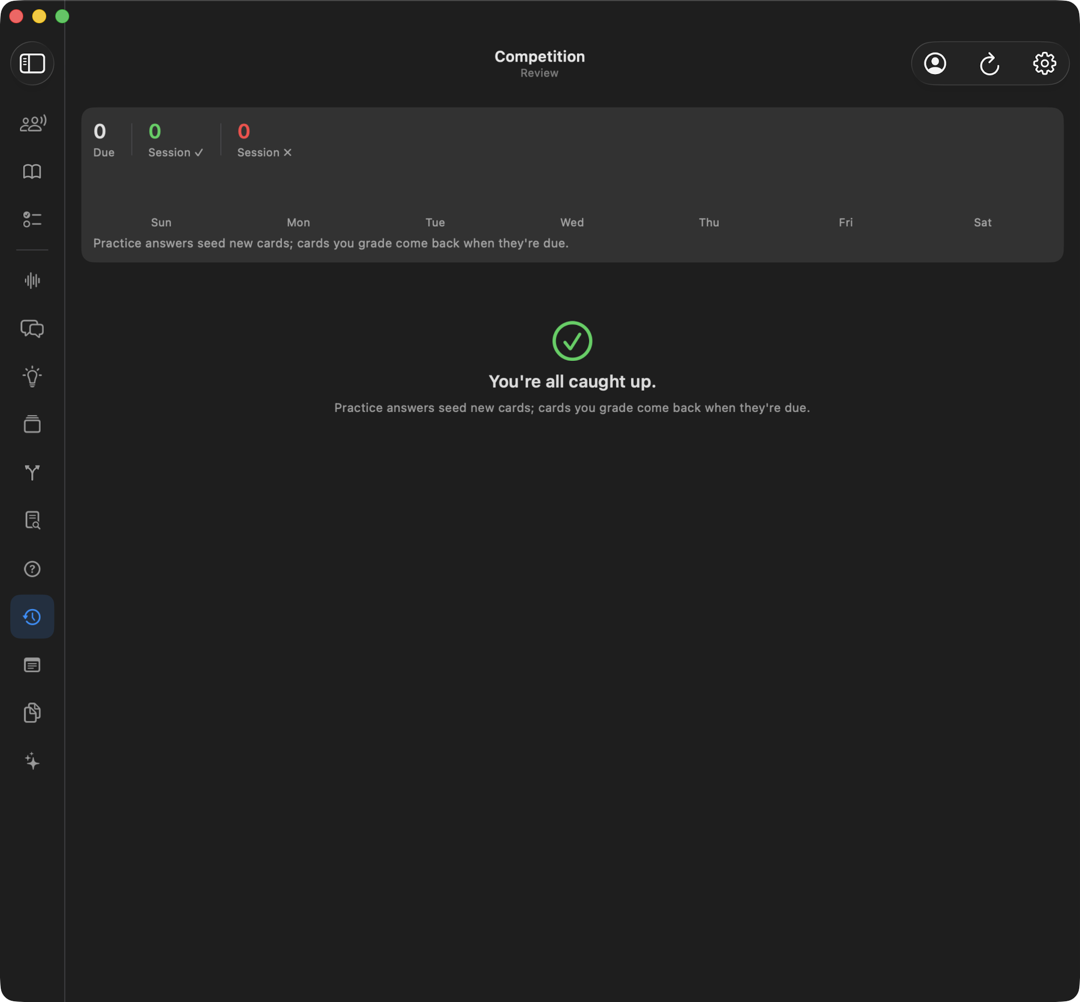
Review is a smart flashcard drill. It brings cards back right when you are about to forget them, which is a proven way to remember things for the long run.
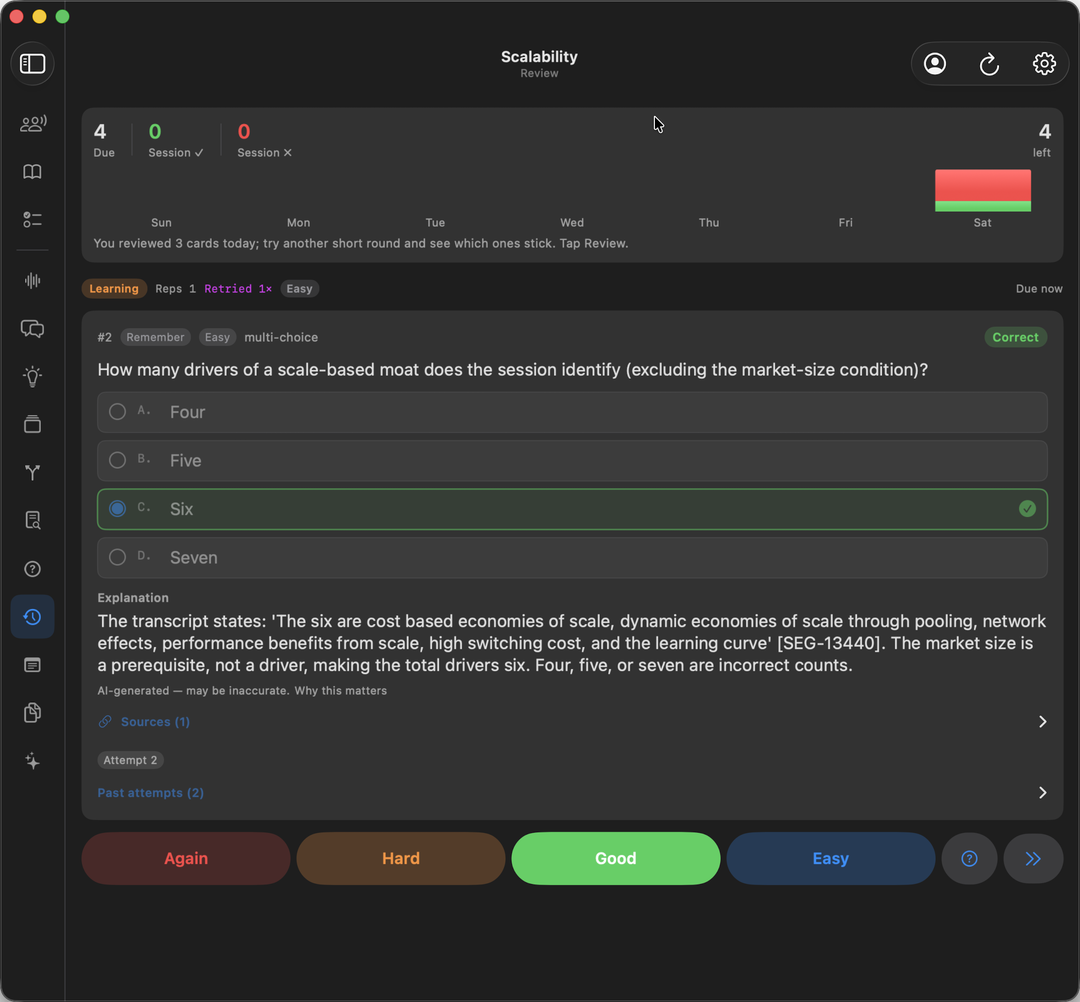
At the top you see how many cards are Due today, how this session is going, and a small bar chart of the week. Answer the card, check the explanation, then tap how it went:
- Again — you did not know it. It comes back soon.
- Hard — you got there, but it was a struggle.
- Good — you knew it. This is the usual answer.
- Easy — it was effortless, so leave it longer next time.
Praesto uses your answer to schedule when to show the card again. When there is nothing left, you get a friendly You're all caught up message.
Notes
Notes is your own space to write things down, either by typing or by drawing with Apple Pencil.
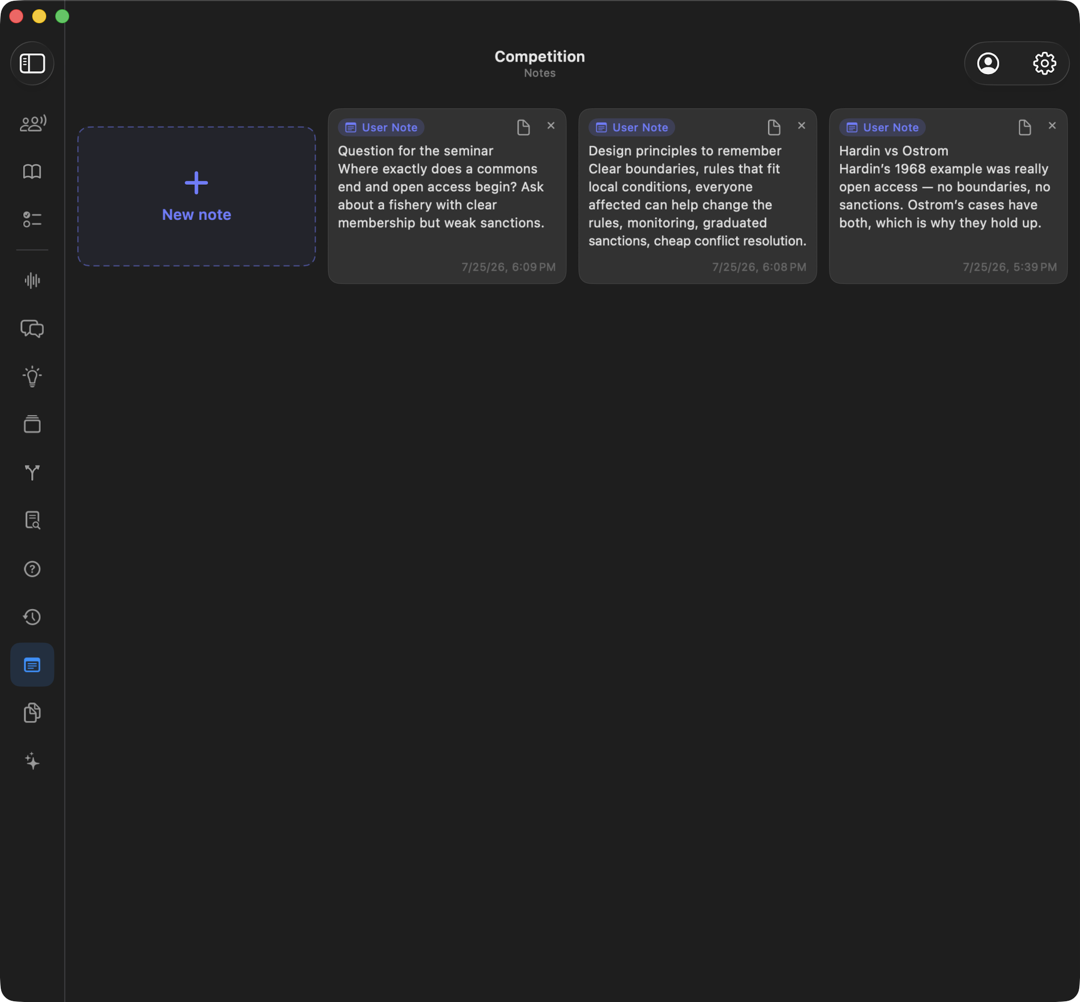
Tap New note to start a card. Your work saves on its own as you go, and you can keep several note cards per conversation.
Inside the editor you switch between Type and Write with the control at the top left.
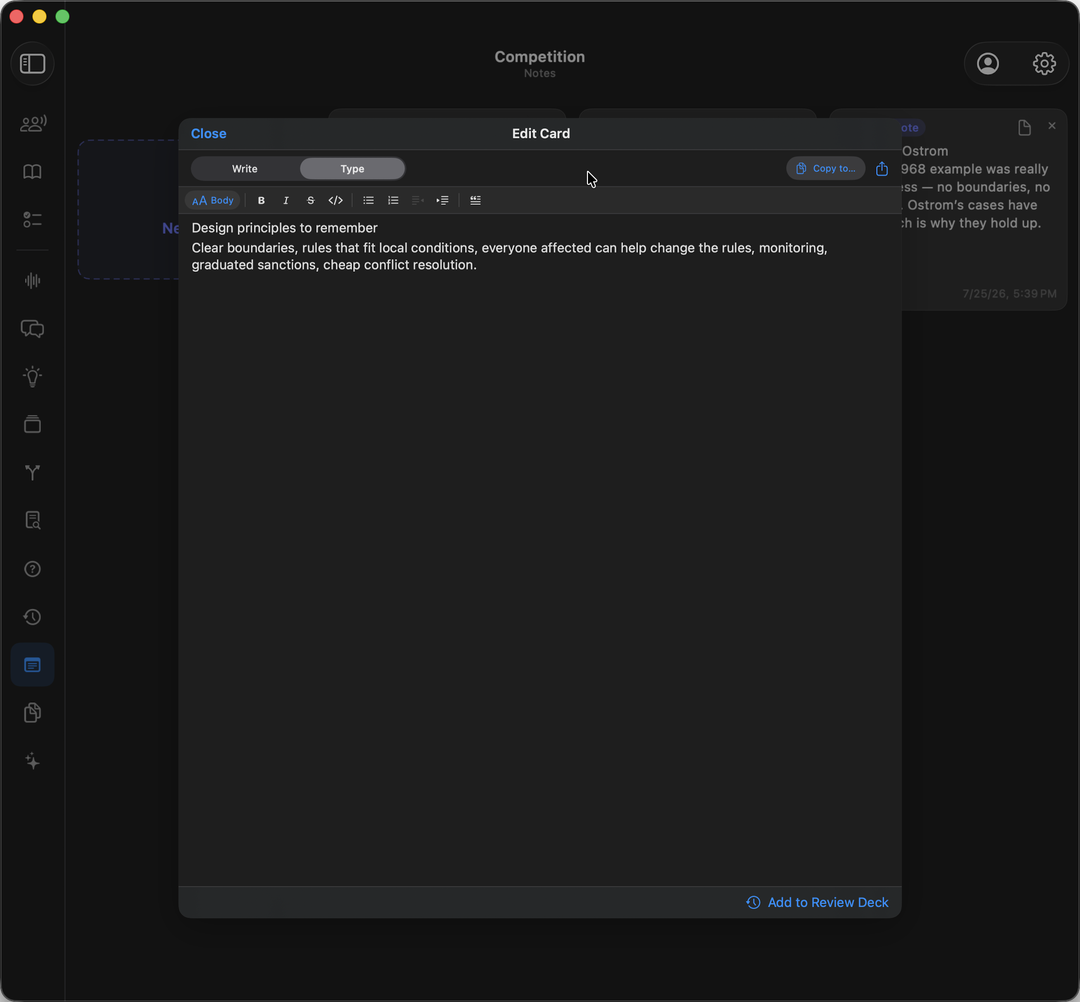
In Type mode a simple formatting bar lets you pick a paragraph style, make text bold or italic, add bulleted and numbered lists, indent and outdent, and set a quote. Copy to… puts a copy in another conversation, the share button exports the note as a Markdown or Word file, and Add to Review Deck turns it into a flashcard.
On an iPad you can also write by hand with Apple Pencil.
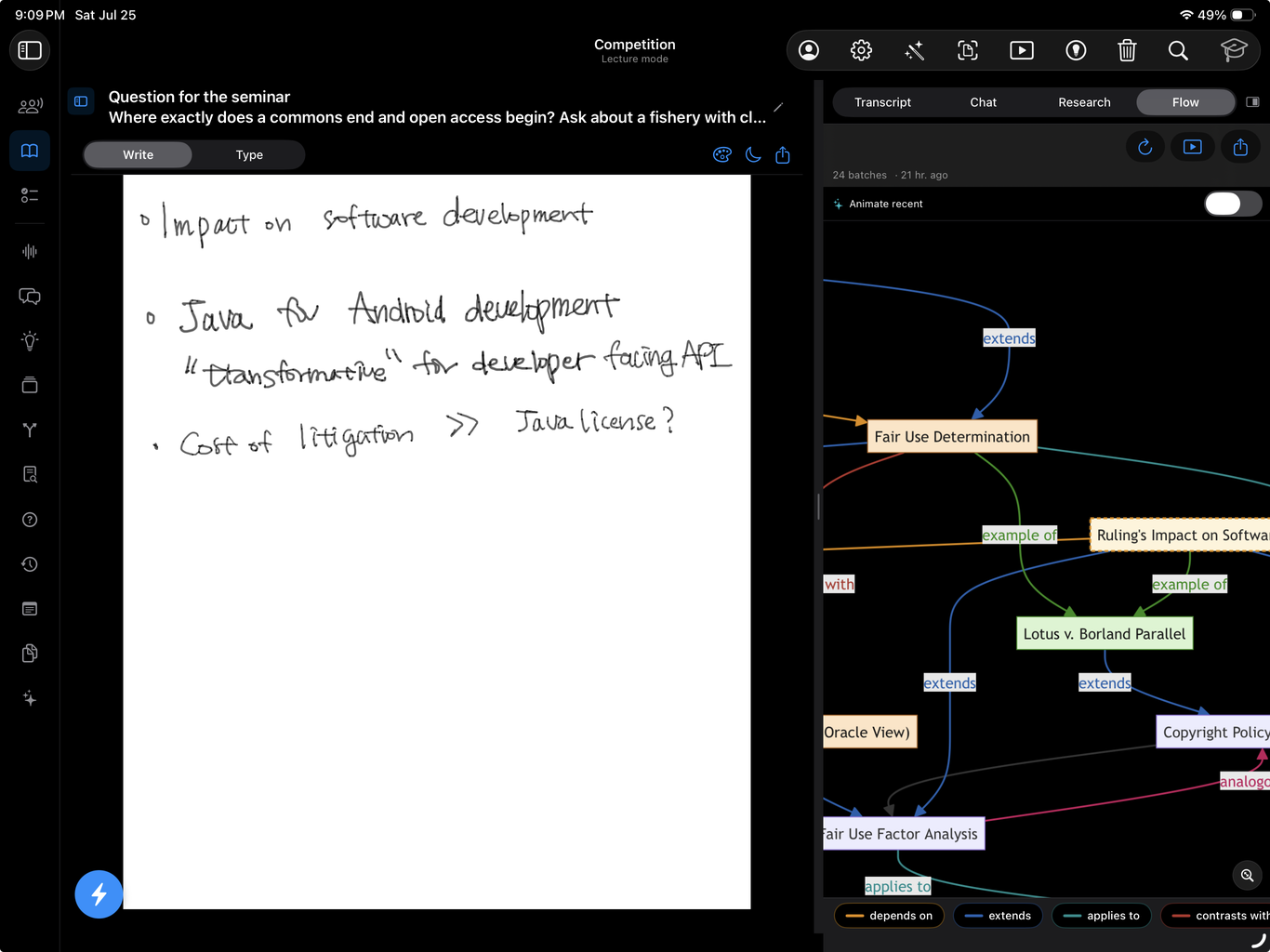
In Write mode the palette button opens the pens, and the moon switches the page between a light and a dark background.
Docs
Docs is where you add your own files so the assistant can use them to help you.
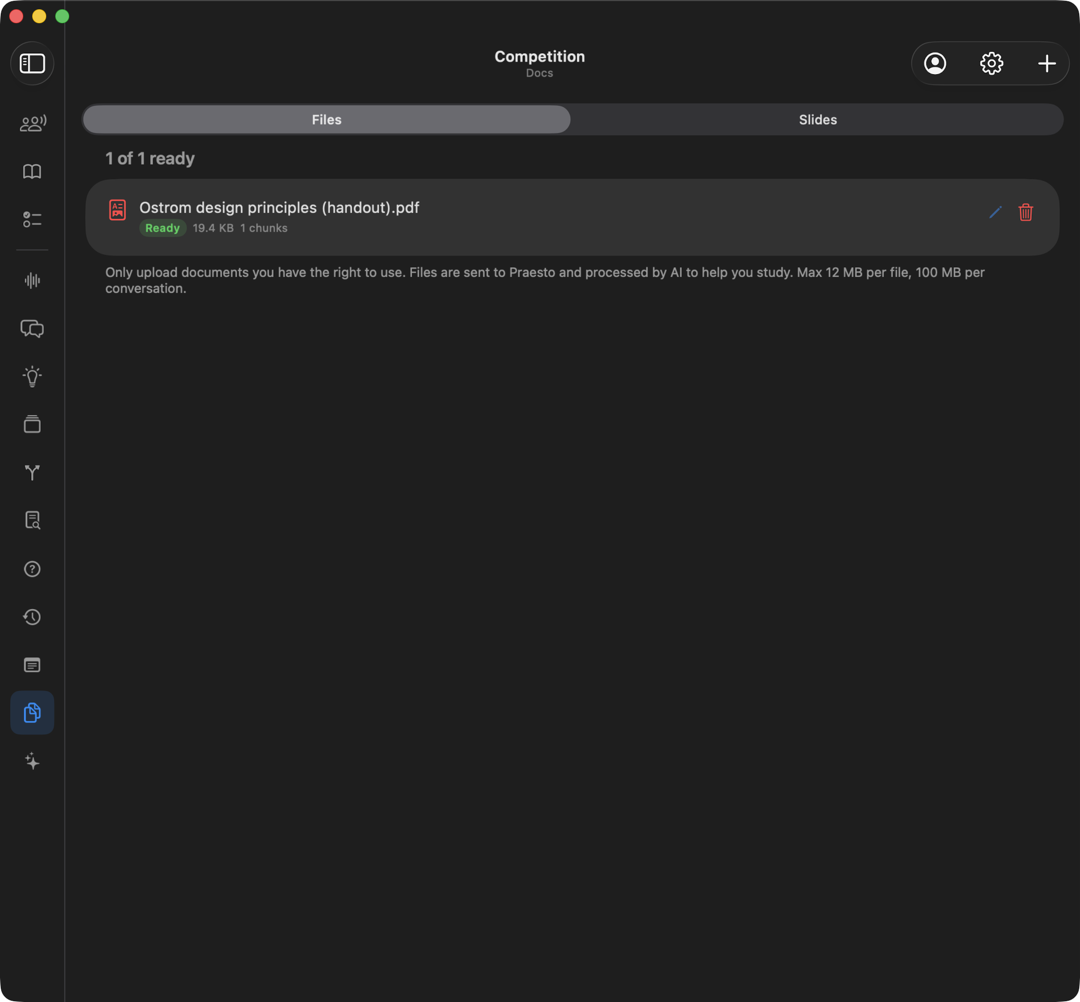
Tap the plus at the top and pick a PDF, Word, Excel, PowerPoint, or text file. Each file shows a Ready label once Praesto has finished reading it, so you know it is set to help. Flip to the Slides tab to read text captured from slides during a session. A gentle reminder: only upload files you have the right to use, and keep each file under 30 MB, with up to 200 MB total per conversation.
Summary
Summary is the big-picture view of your whole session.
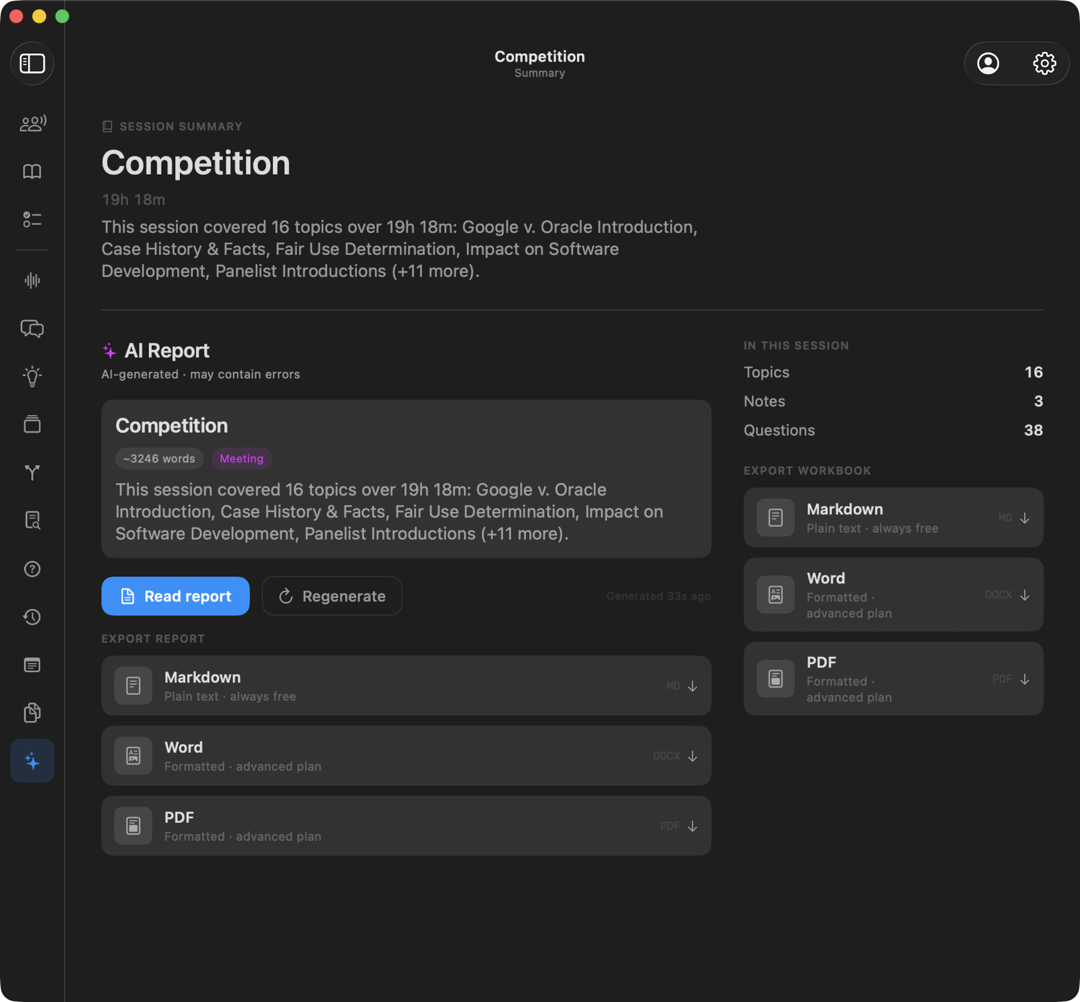
At the top you see the session title and how long it ran, along with a short written recap. The In this session panel counts your topics, notes, and questions. When you want a fuller write-up, tap Generate report and Praesto writes an AI report covering the key messages and anything you may have missed. From here you can also Export your work as a study workbook: Markdown is always free, and Word, PDF and Anki come with the Pro plan.
Recording and audio
Tap the green Start button and Praesto begins listening.
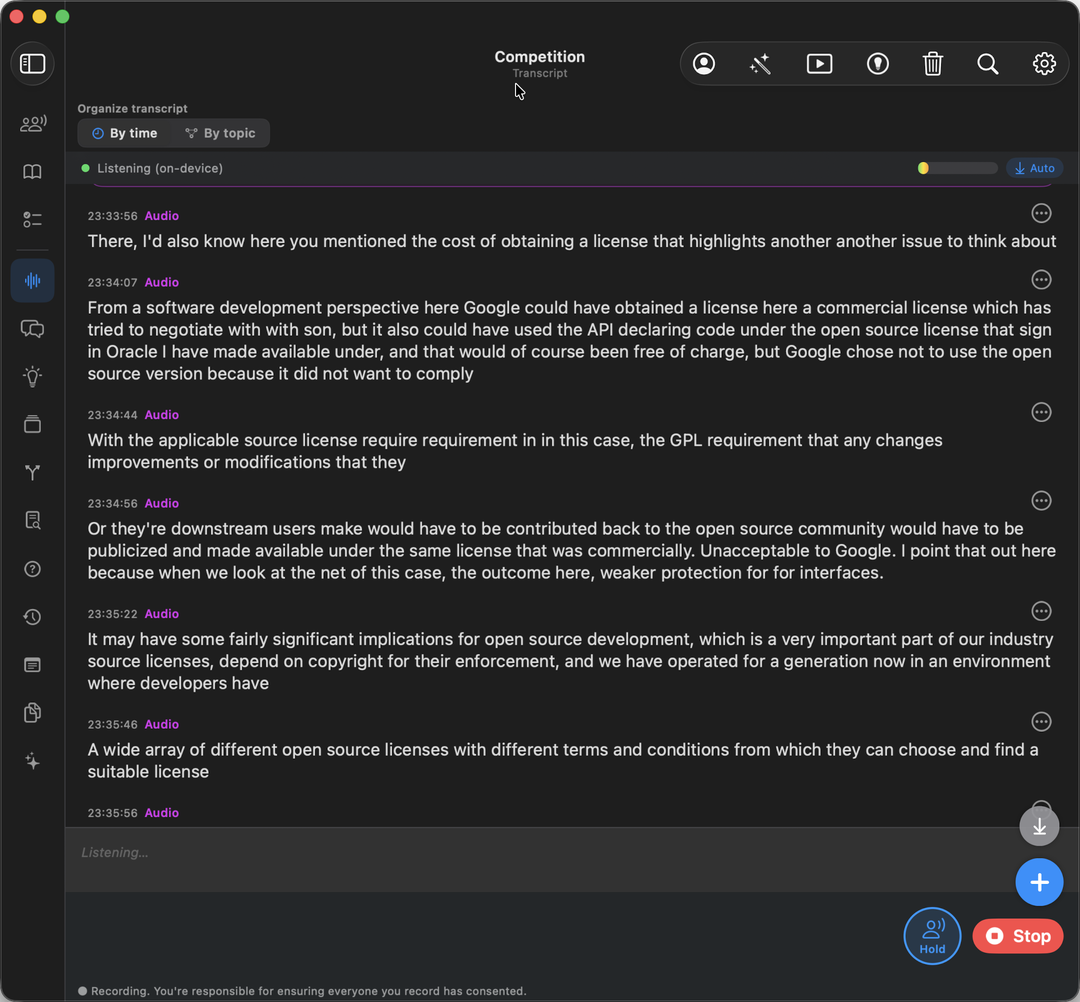
- The status line changes to Listening, with a small level meter that moves with your voice, so you can tell it is really hearing you.
- Words appear in the box at the bottom as they are being worked out, then settle into the transcript above.
- Hold pauses listening for a moment, for a private aside, without ending the session. Tap it again to carry on.
- The red Stop finishes the session and saves everything.
- A quiet line along the bottom reminds you that you are responsible for making sure everyone you record has agreed to it. Please do check.
- On a Mac, you can also capture the other people on a call. In Settings, turn on Include the other people on a call. This only works while you are wearing headphones, and the first time you may be asked to grant a recording permission on your Mac.
Tidying up the transcript
Speech-to-text is good, not perfect. The Correct transcript button (a wand with stars, at the top) has a second read of the whole conversation and proposes fixes.
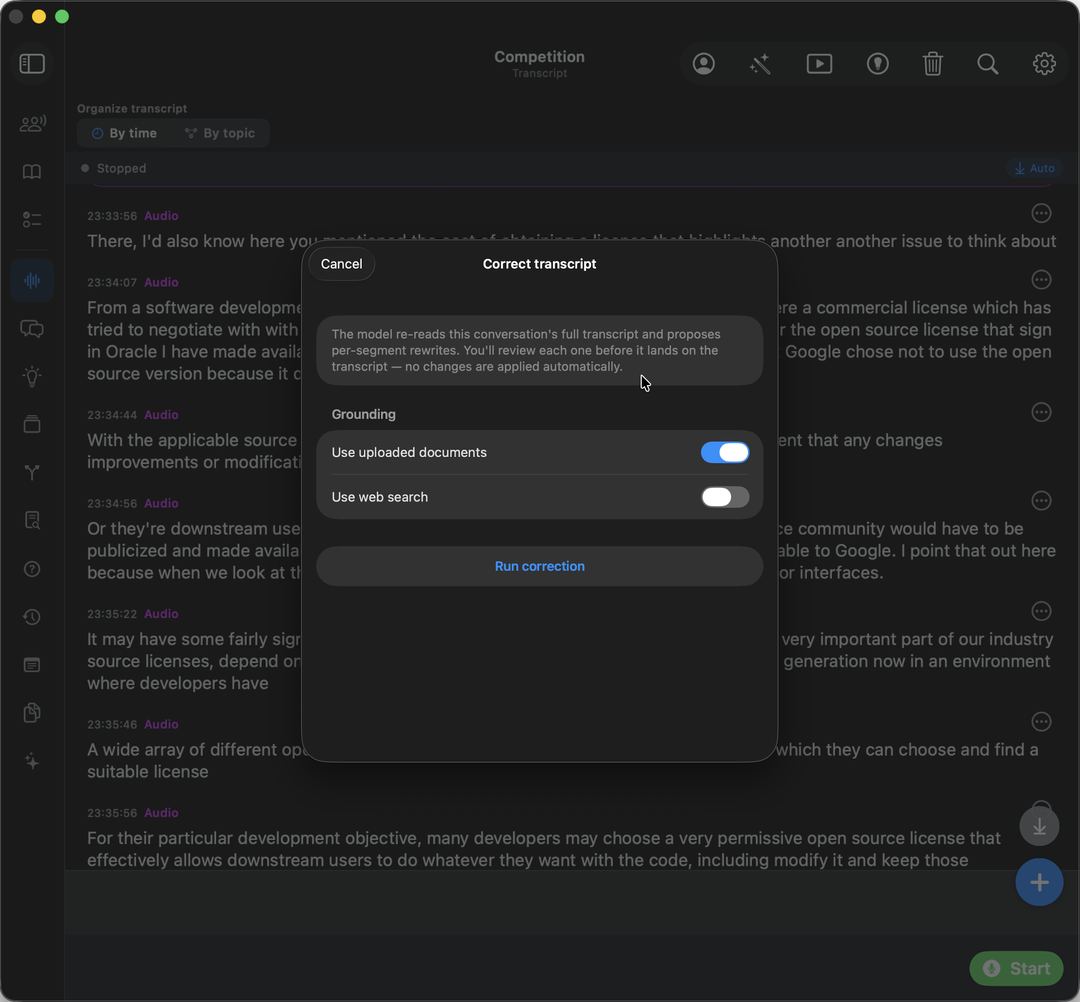
You can let it lean on your uploaded documents, and on a web search, so that names and technical terms come out right. Nothing is changed behind your back: you review each proposed fix before it lands on the transcript.
Capturing a slide
On an iPad, the Capture slide button (a small viewfinder, at the top) photographs the slide in front of you.
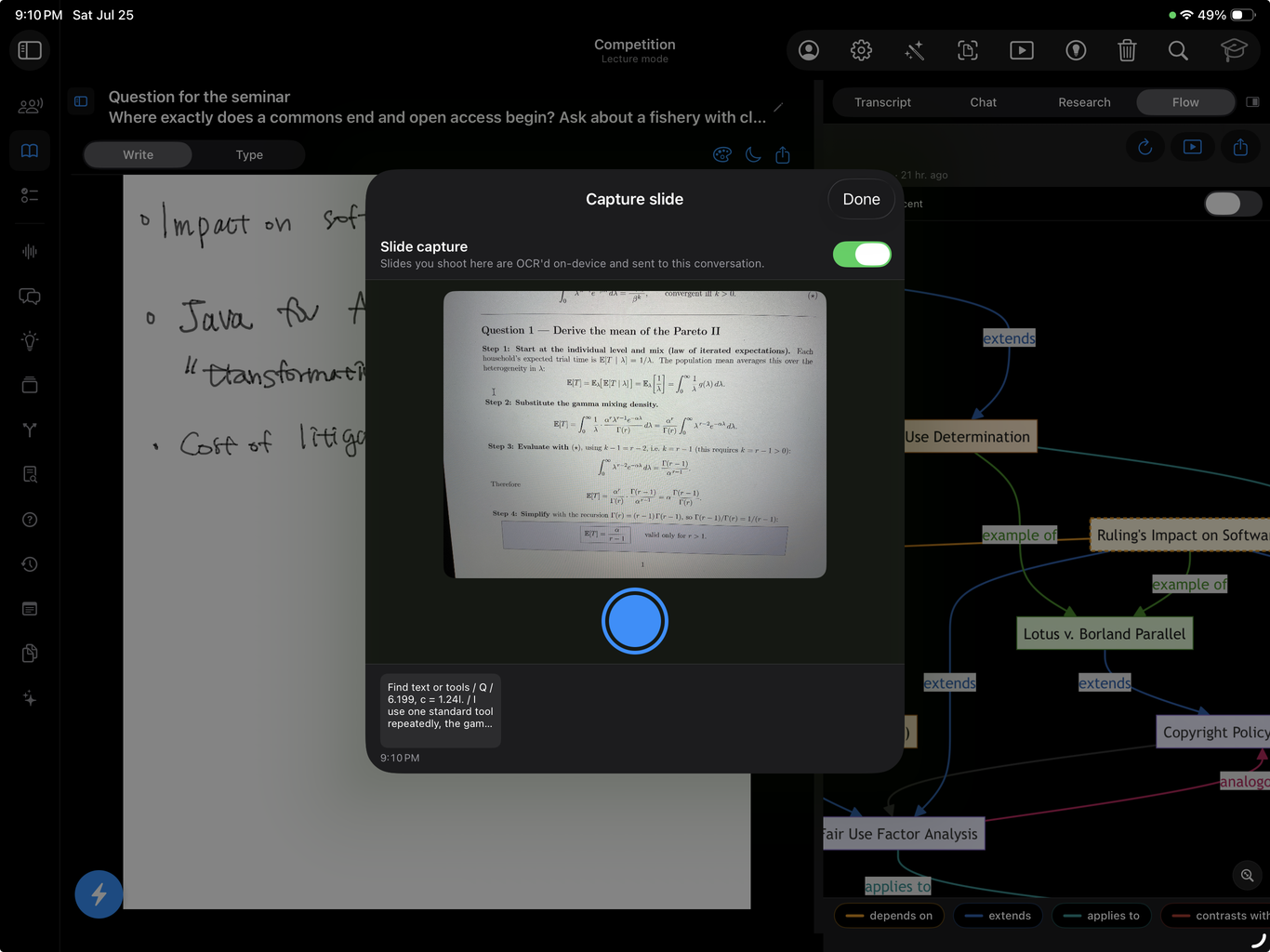
The picture is read on your device, and the text it finds is added to the conversation, so the assistant can use what was on the slide as well as what was said.
Sharing with a group
If you want to study or meet together, you can turn any conversation into a shared group.
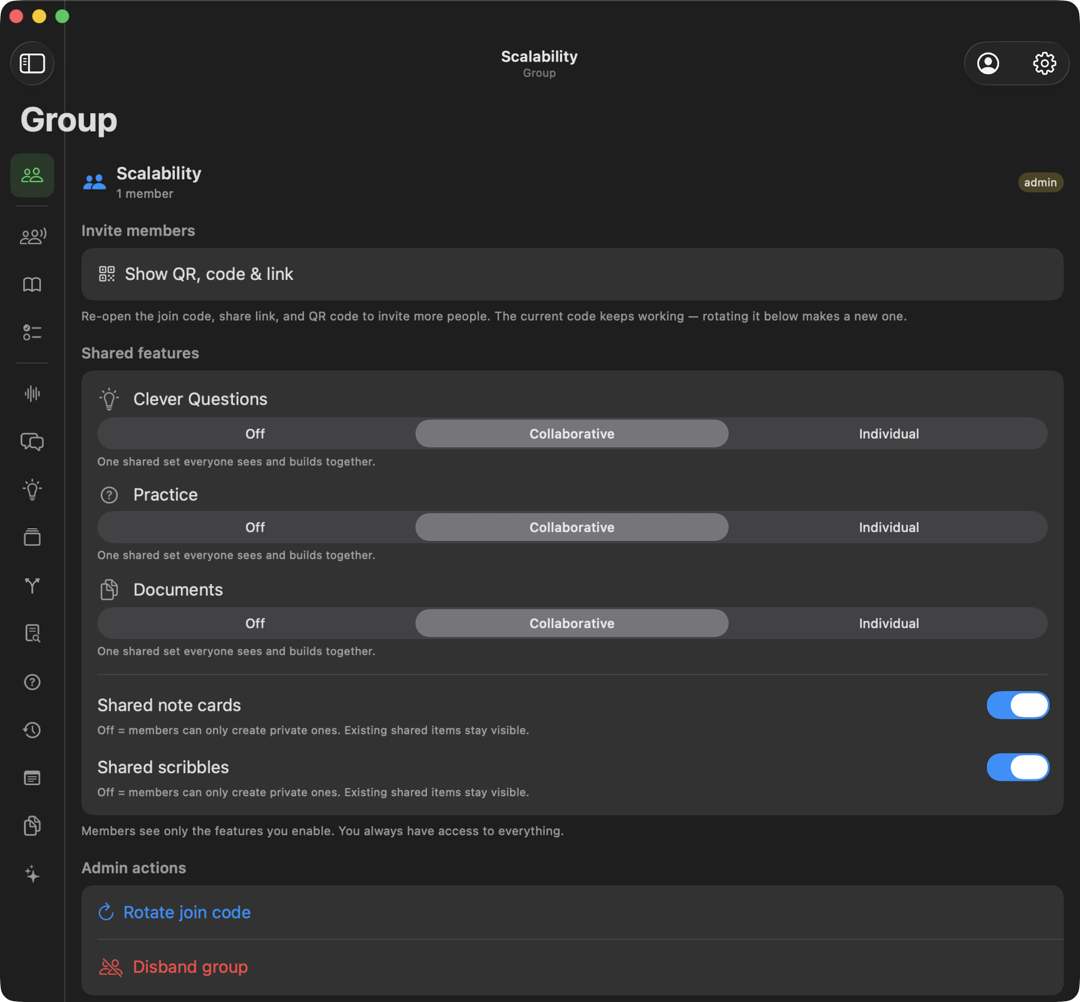
- Start a group. Use New group from the plus menu, or Convert to group from a conversation's three-dot menu. Once a conversation is shared, a Group entry appears at the top of the menu.
- Invite people. In the Group panel, tap Show QR, code & link to get a code, a link, and a scannable image others can use to join.
- Shared features. For Clever Questions, Practice, and Documents you choose Off, Collaborative (one shared set everyone builds together), or Individual (everyone gets their own). Shared note cards and Shared scribbles are simple on/off switches. Transcript, Chat, Research, Flow, and Topics are always shared.
- Join a group. Use Join group from the plus menu and enter the key you were given.
- Roles. The person who starts a group is the admin. Admins can make others admins, remove people, rotate the join code so old links stop working, and disband the group. Members can leave a group at any time and keep their own personal copy of the work.
Settings
Open Settings from the gear icon at the top right. Here are the choices you will find.
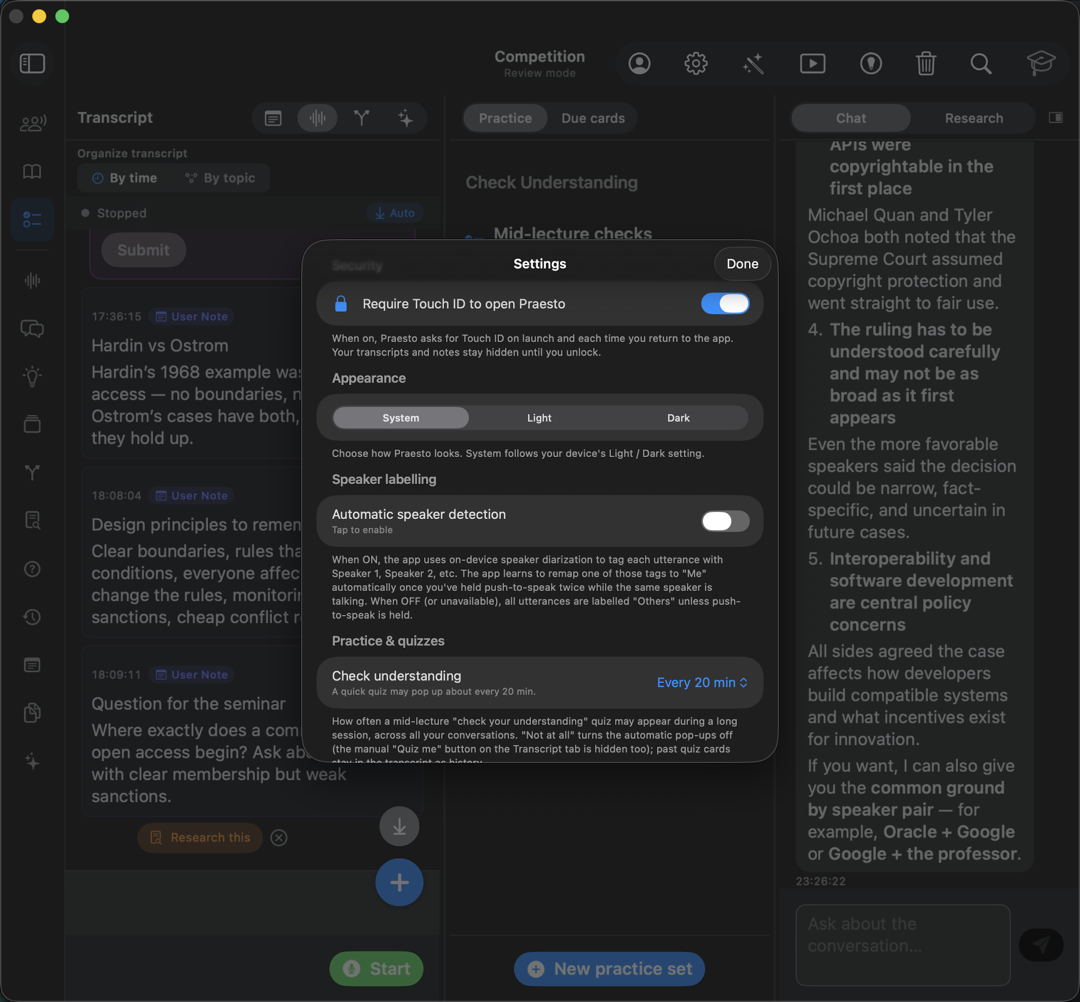
- Require Face ID or Touch ID to open Praesto. Locks the app so it asks for your face or fingerprint before showing your notes.
- Appearance. Pick a light look, a dark look, or match your device.
- Check understanding. Choose how often a short quiz can appear during a long session, or turn it off.
- Notes panel side. Choose whether your notes open on the left or the right.
- Workspace drawer side. Choose which side your files and tools drawer sits on.
- On a Mac only, you will also find call-audio capture and some experimental microphone controls.
Your account
Open your account from the person icon at the top right.
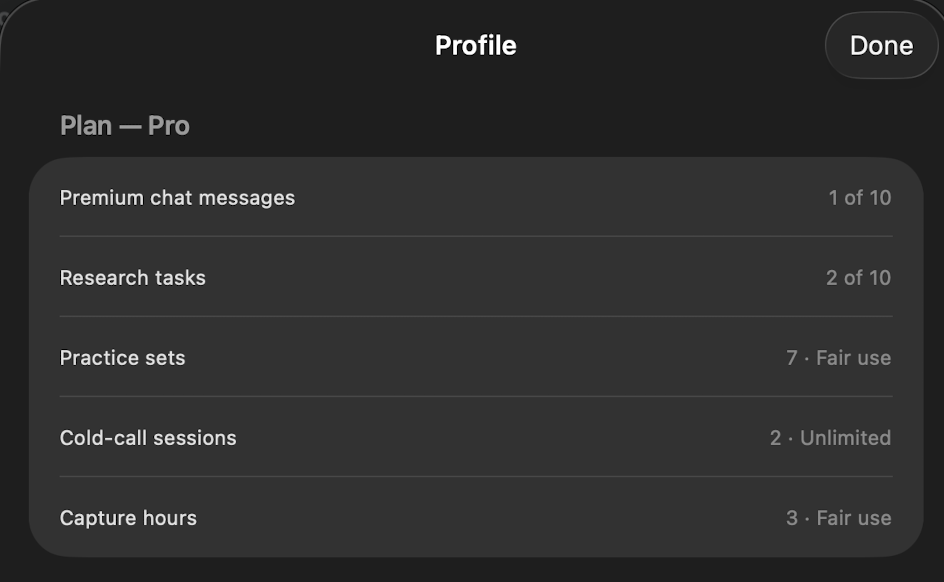
- Your plan. At the top, a plain list of what you have used this month. Some things are counted, like 1 of 20 premium chat messages; others say Fair use or Unlimited, which means there is no number to watch.
- Sign-in options. You can sign in with Apple or Google, and set up passkeys so you can sign in with Face ID or Touch ID instead of a password.
- Two-factor authentication. For extra safety, you can add a second step at sign-in, and copy your recovery codes to keep somewhere safe.
- Your devices. See every device signed in to your account and sign any of them out.
- If you reach a limit, an upgrade panel explains what a paid plan adds.
- Sign out signs you out of this device, and Sign out everywhere signs out every device at once.
- Delete account starts the steps to permanently remove your account and all your data.
Exporting your work
You have several friendly ways to take your work with you.
- A session report. From Summary, generate a report and export it as a document.
- A study workbook. Also from Summary. Markdown is always free; Word, PDF and Anki come with the Pro plan.
- A single note. From the note editor, export as Markdown or Word.
- A document. From a file's preview, download a copy, or on a Mac save it to a folder you choose.
Connect your AI assistant
Everything you capture in Praesto piles up into one searchable body of work: your transcripts, your notes, the documents and slides you upload, and what Praesto worked out from them. That is your knowledge base, and it is yours.
This section is about getting it out of Praesto and into the agents and AI tools you use elsewhere, so that they answer from your own material instead of guessing. There are two ways.
Hand over a file. Open Summary, generate the report, and export it. If you would rather no AI touched it first, export the plain workbook instead — that is simply what was said and what you wrote. Then upload the file wherever you want it. This needs no setup at all, and it works with every tool.
Or connect it directly. Praesto has a connector that lets an outside assistant look things up in your knowledge base on its own, while you are talking to it. You ask it to check your last Valuation class, and it searches your own sessions and answers from them. Nothing to export, nothing to upload.
The connector is part of Praesto Pro. The Free and Essential plans do not include it, so if you are on one of those, the setup below stops at the last step and offers you the plans instead. You set it up once, on a computer, and it keeps working after that.
A note on the word Pro, because it is about to appear twice meaning two different things. Praesto Pro is your plan with us. The assistants below sell plans of their own, and some of those are called Pro too. Each one is named as theirs where it comes up.
Its address is:
https://app.praestologica.com/mcp
You can also copy it from the Connectors section of your account page at praestologica.com/account.
What your assistant can do, and what it can never do
Once connected, your assistant can read your material:
- the list of your conversations, and what each one was about
- the transcripts of what was said
- your notes, typed and handwritten, and your Live Note
- the documents and slides you uploaded
- the topics Praesto found, the reports it wrote, and how your practice and review are going
- the shared chat, research results and the agent feedback you kept
- everything Praesto holds for one conversation, as a single document, when you ask for the full details rather than a summary
By default that is all it can do. It cannot change or delete anything in Praesto. There is no setting that lets it.
When you approve the connection you are offered one extra box, Also let it create new documents. It stays off unless you check it. Checking it lets the assistant file a new written document into one of your conversations, for when you ask it to save a study sheet or a write-up. Even then it can only add something new. Anything it files is marked as written by an AI, and it only ever lands in your own private conversations.
Your assistant sees your material and nobody else's. A conversation you share with a group is included only if that group's admin has turned on Outside AI assistants, which is off until they do.
One thing to weigh before you connect. Praesto does not let any AI model train on what you capture. That promise covers Praesto. It cannot cover an assistant you connect to it. Whatever that assistant reads goes to the company that runs it, under their terms rather than ours. So connect the one you already trust with your work.
Setting it up in Claude
Do this on a computer, in a web browser. On Claude's own side, its Free plan allows one custom connector, so you do not need to pay Anthropic for this.
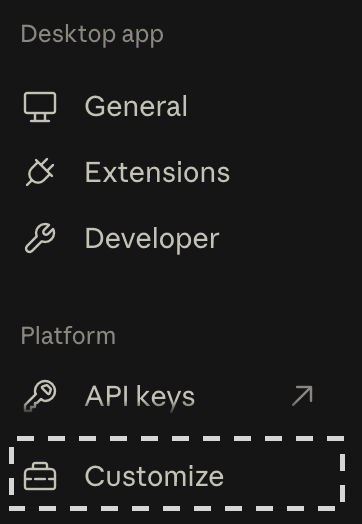
1. In Claude, open Settings and choose Customize, at the bottom of the list under Platform.
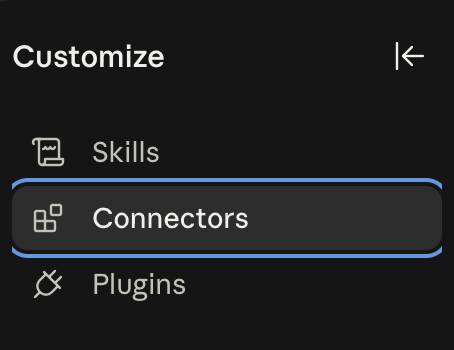
2. The list becomes Skills, Connectors, and Plugins. Choose Connectors.
3. Press Add at the top right.

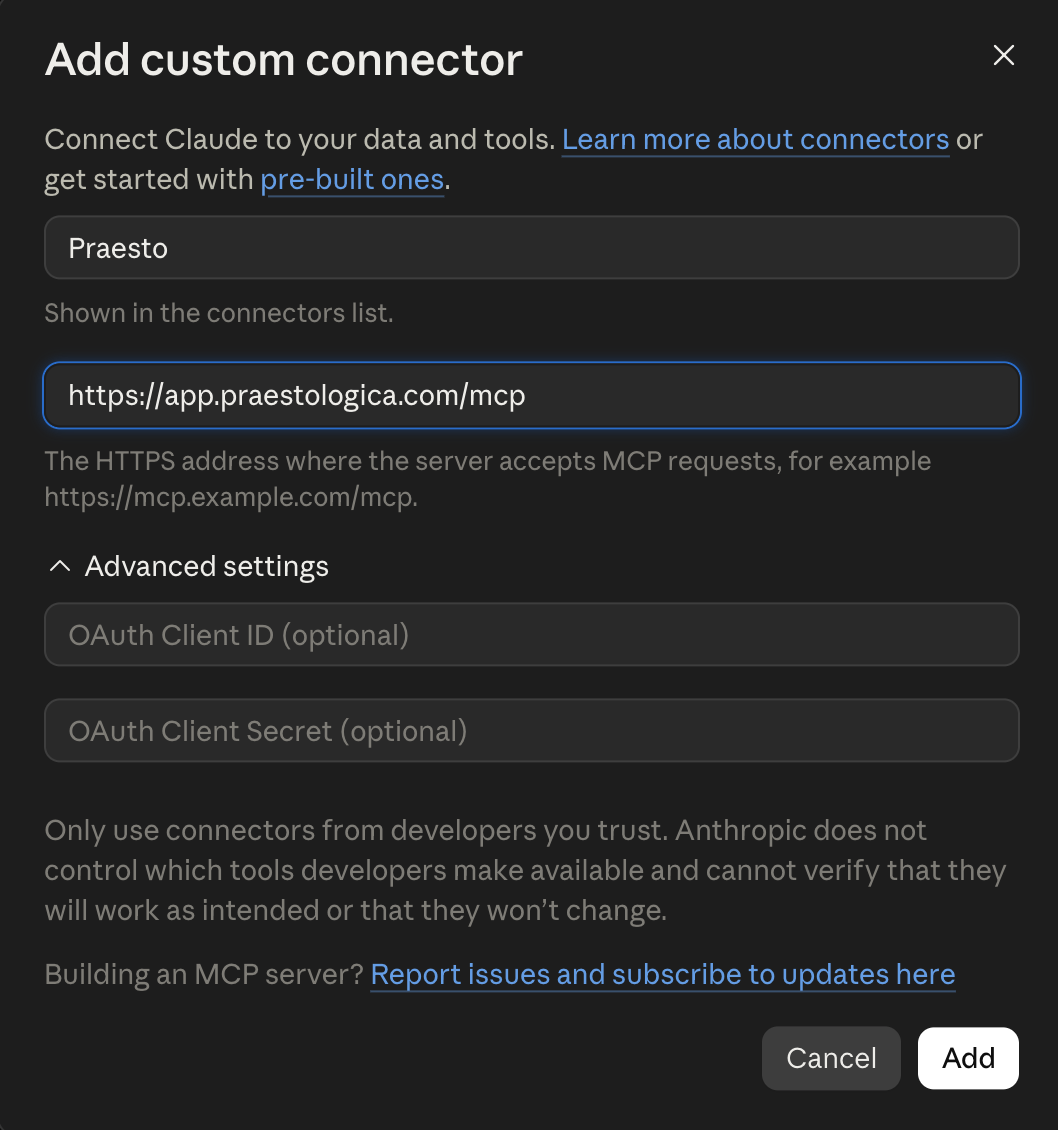
4. Give it a name — this guide uses Praesto — and paste the address into the second box. Leave the two optional OAuth boxes empty. Press Add.
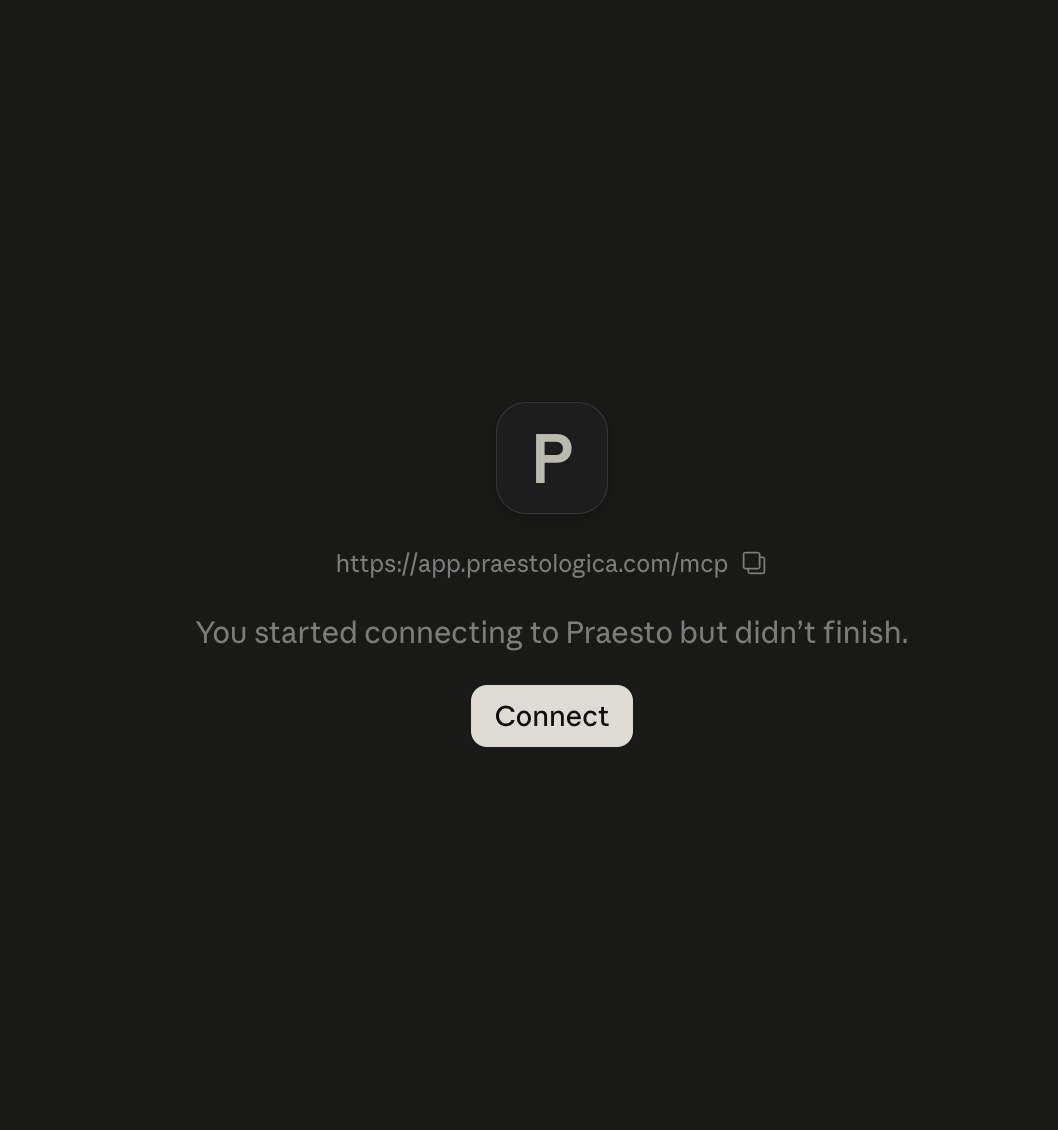
5. Claude opens a Praesto page. Press Connect.
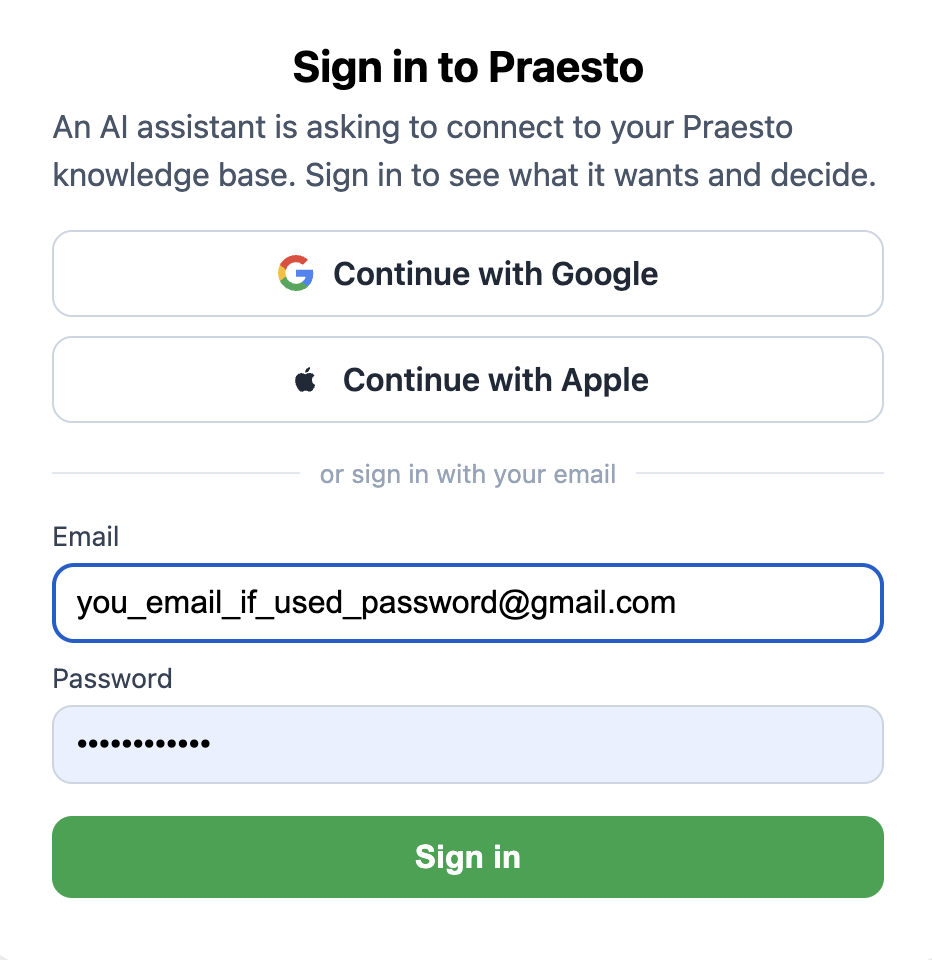
6. Sign in with your Praesto account. If you use two-step verification, enter your code next.
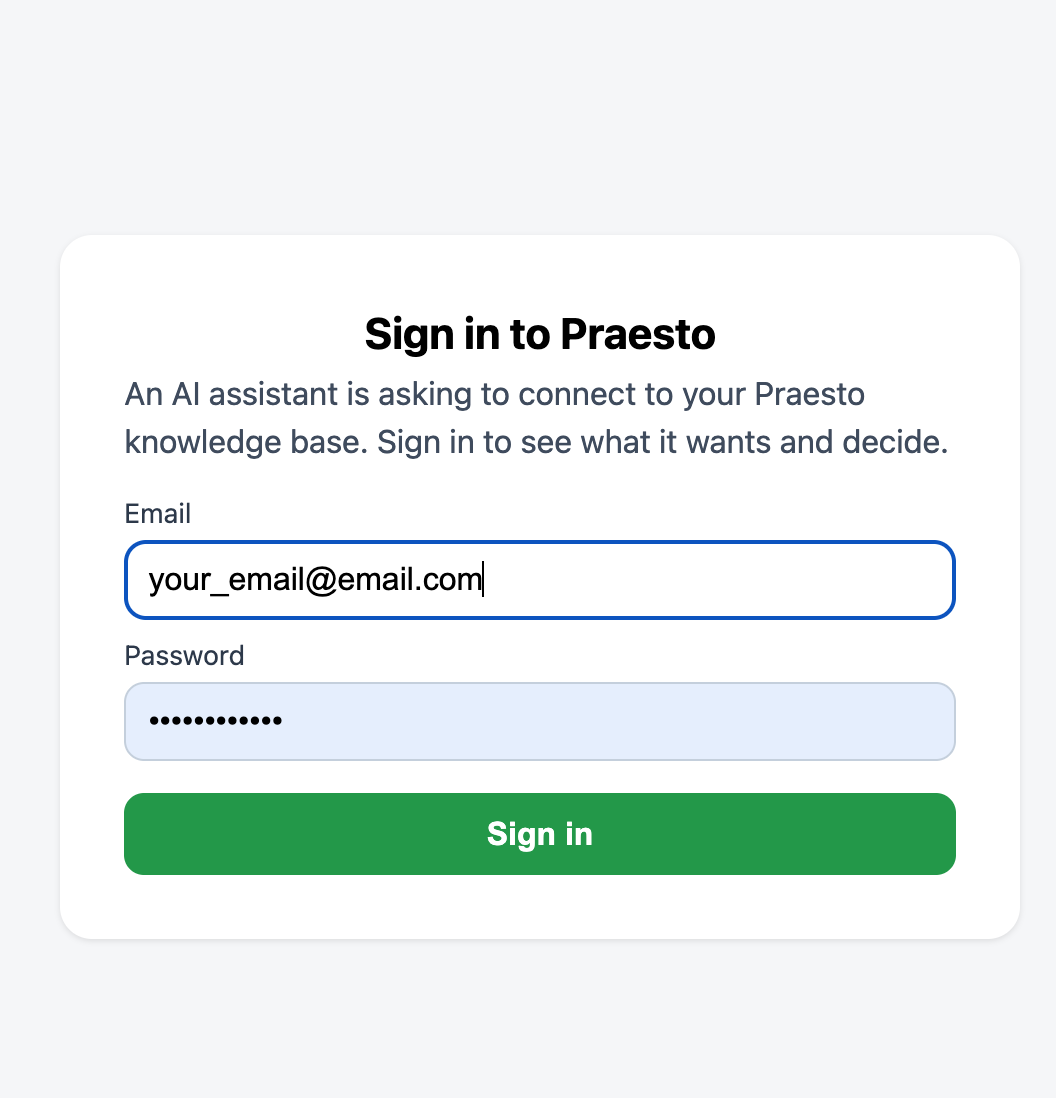
7. Praesto then asks Connect this app? and lists what it will be able to read. Check the document box if you want that, then press Approve. Claude is connected.
Setting it up in ChatGPT
ChatGPT keeps custom connectors behind Developer mode, so there are a few more steps. On ChatGPT's own side, Developer mode comes with its Plus, Pro, and Business plans, so this route needs a paid plan with OpenAI as well as Praesto Pro.
1. Open your account menu and choose Settings.
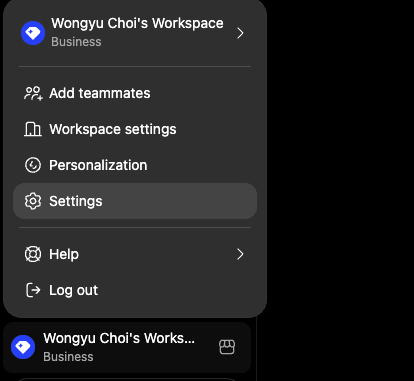
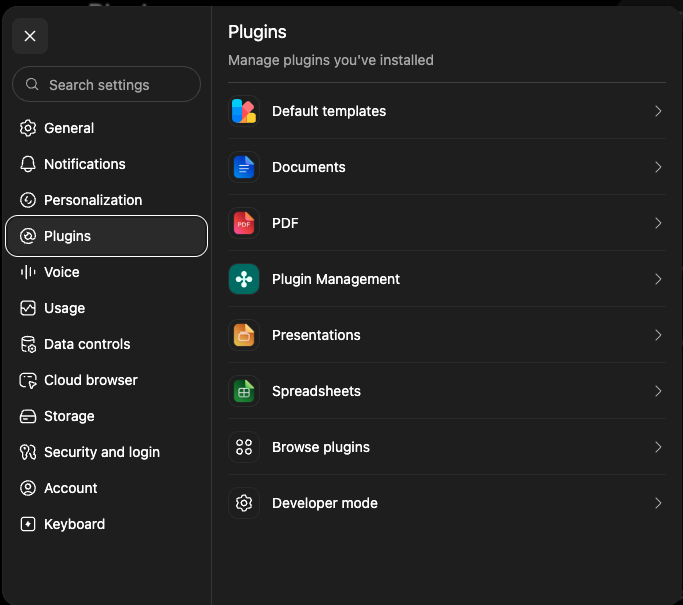
2. Choose Plugins, then Developer mode at the bottom of the list.
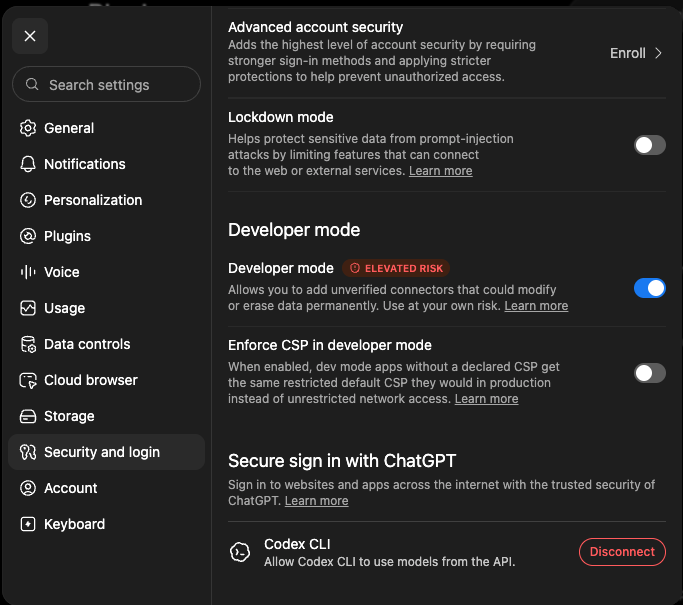
3. ChatGPT takes you to Security and login. Turn Developer mode on.
4. Go back to Plugins, then choose Browse plugins.
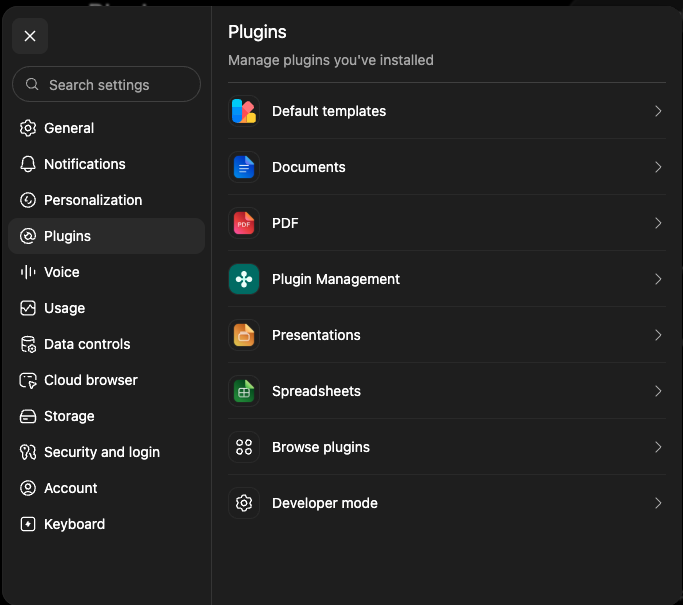
5. Press the plus button at the top right.

6. Fill the form in:
- Name — anything you like. The picture below uses Praesto-PROD; plain Praesto is fine.
- Connection — leave it on Server URL and paste
https://app.praestologica.com/mcp. - Authentication — choose OAuth. You do not need the advanced settings.
- Check I understand and want to continue, then press Create.
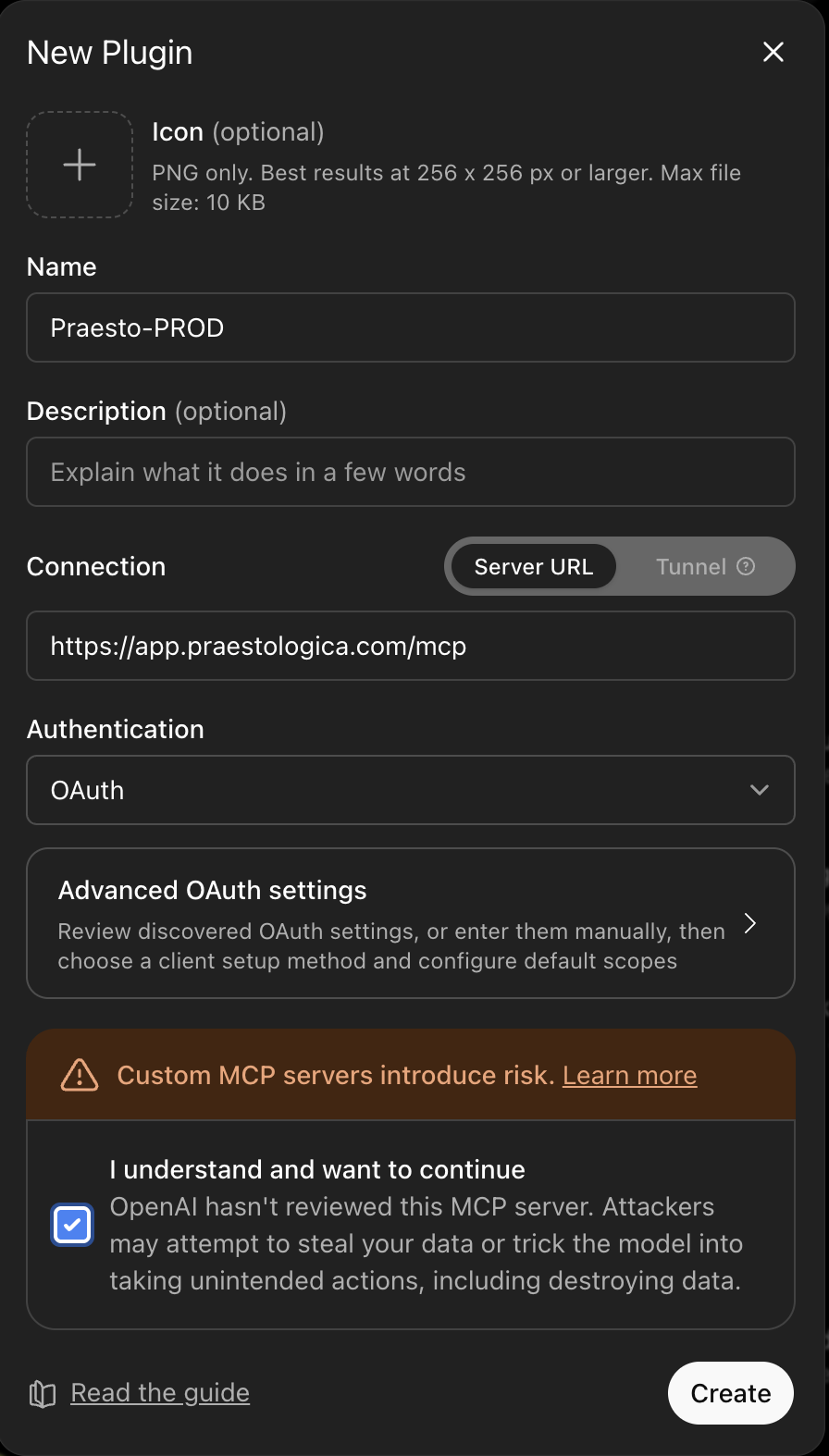
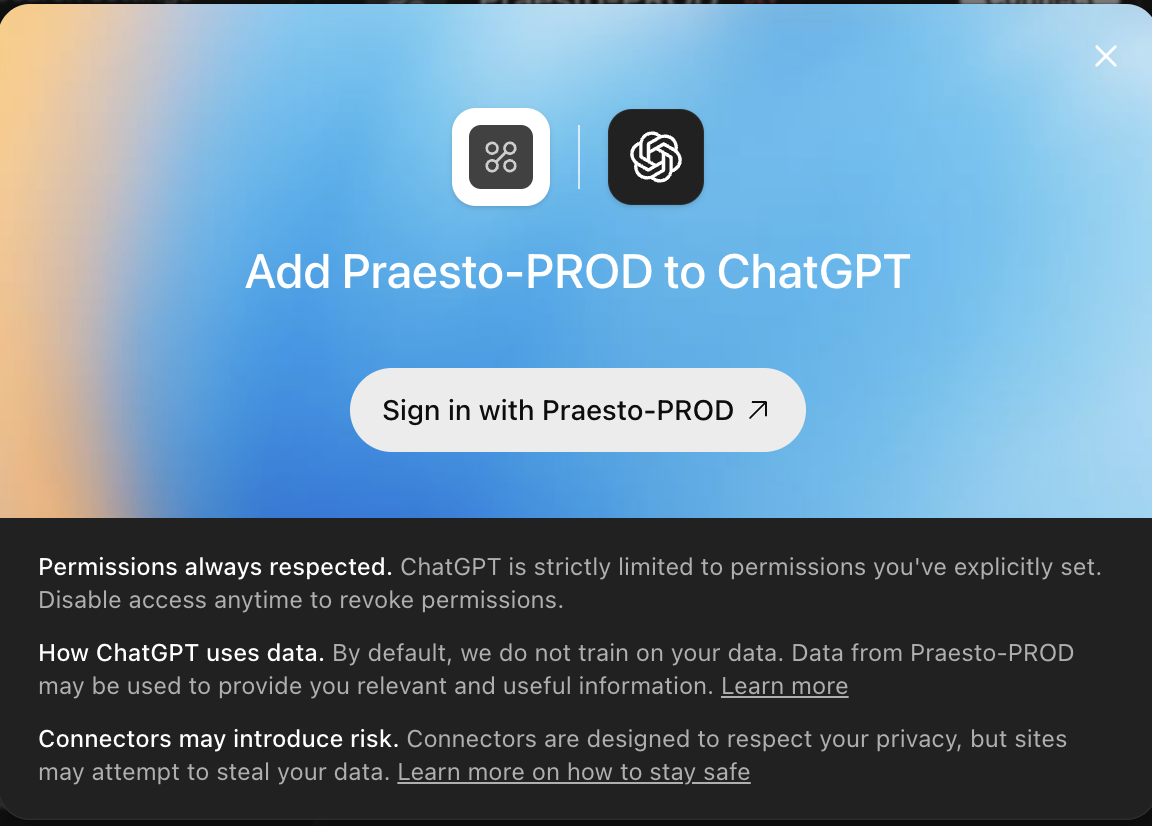
7. ChatGPT shows a panel headed Add … to ChatGPT, using the name you chose. Press Sign in with ….
8. Sign in with your Praesto account, then press Approve on the Praesto page, the same as step 6 for Claude.
Other assistants
Anything that can add a remote MCP server works the same way: give it the address above and sign in when your browser opens. Your account page has short notes for Gemini CLI, Cursor, VS Code, and LM Studio.
What to ask it once it is connected
Talk to your assistant as you normally would. It reaches for Praesto when your question sounds like it is about your own material.
- "What did my Tuesday lecture say about governing shared resources?"
- "Find my notes on the Google and Oracle case and turn them into a one-page brief."
- "When did I first hear about the NBD model?"
- "Quiz me on last week's meeting."
Disconnecting
Open your account page at praestologica.com/account, go to Connectors, find the assistant under Connected apps, and press Revoke.
Access stops at once. Revoking cannot un-read anything the assistant read while it was connected. You can always connect it again later.
A few friendly tips
- You can switch modes and features anytime without losing anything. Your transcript, notes, and cards are always safe.
- The more you upload to Docs, the more helpful Chat, Research, and Practice become, because they can use your own material.
- Answering Practice questions quietly creates flashcards, which then show up in Review when they are due. A little each day goes a long way.
- If the transcript ever looks a little rough, the Correct transcript button cleans it up and shows you the changes before keeping them.
Thanks for using Praesto. We hope it makes your classes and meetings easier to follow, and easier to remember.